Importing the NPS Localization Package - Serbia
The implementation of NPS localization represents an important step toward improving business processes and ensuring compliance with local requirements and business standards. The package includes various functionalities that enable more efficient work and simplify the daily use of the system.
The following documentation provides an overview of the NPS localization package import process, including clearly defined steps and the basic setup required for a successful implementation.
Purpose of Importing a Localization Package
-
Importing a package helps you get familiar with NPS Localization and its functionalities.
-
It provides specific data according to the package you select, giving you the option to choose.
Types of Localization Packages
-
There are three types of packages available.
-
Each type is designed to meet different company needs.
Environment Recommendation for Importing Localization
-
To avoid replacing existing settings in the production environment, do not import directly into production, unless the production company is empty and contains no data.
-
Always use an empty environment or a sandbox to test package imports.
How to Import a Localization Package?
-
The import process is straightforward and consists of the following steps:
-
In the search, enter Assisted Setup. The Assisted Setup page will open, where you can enter NPS Localization in the search field and select it.
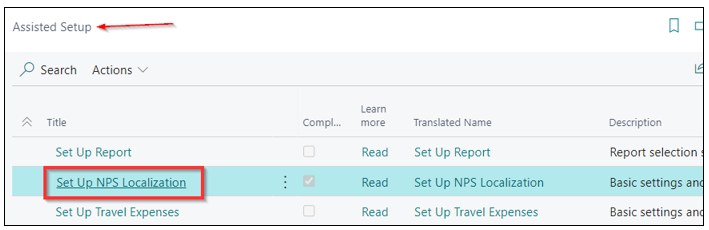
NPS Busic Setup Wizard
The NPS Busic Setup Wizard page will open, where you will have the following steps:
- Accept the warning and click Next.
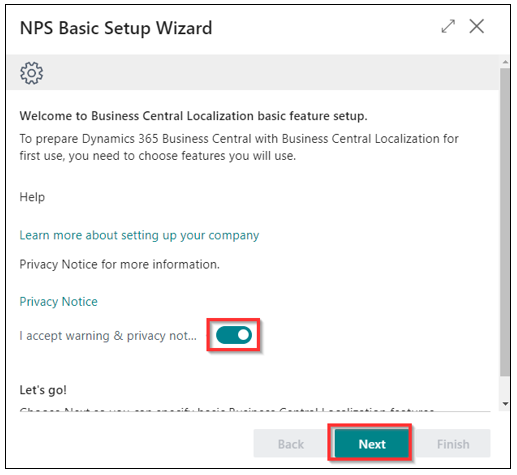
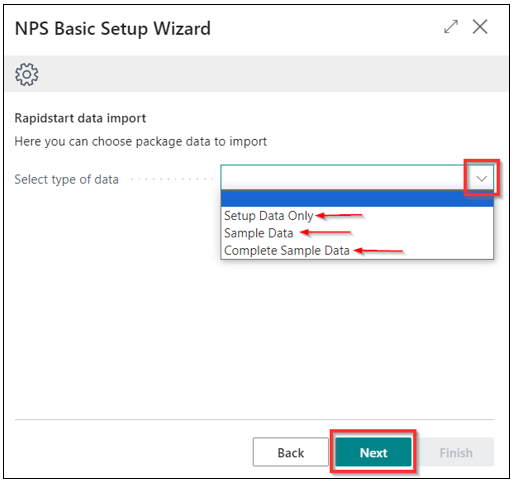
- There are three data types. After you have selected the data type, click Next.
Data type NPS LoLocalization:
1.Setup Data Only
-
Includes only configuration data.
-
Enables service and expense postings.
-
Contains batch number series and a chart of accounts.
-
Customer and vendor cards must be created manually in Business Central.
2.Sample Data
-
Includes configuration data and sample data ready for posting.
-
Contains number series, customer and vendor cards, items, fixed assets, chart of accounts, VAT, etc.
3.Complete Sample Data
-
Includes configuration data and complete sample records.
-
Contains customer and vendor cards, items, fixed assets, chart of accounts, VAT, posted inventory, and documents.
-
The General Ledger includes recorded transactions.
- Click Download Package.
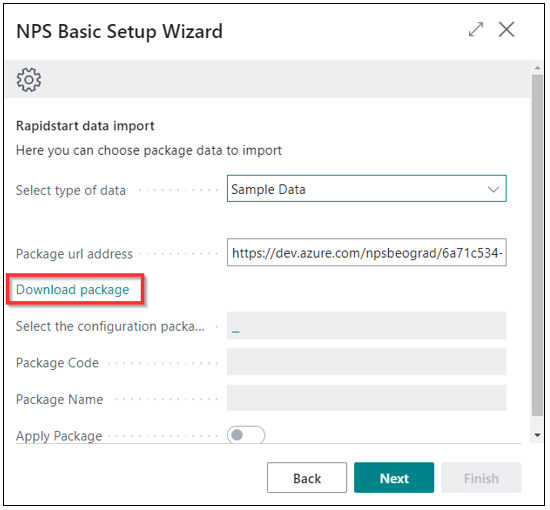
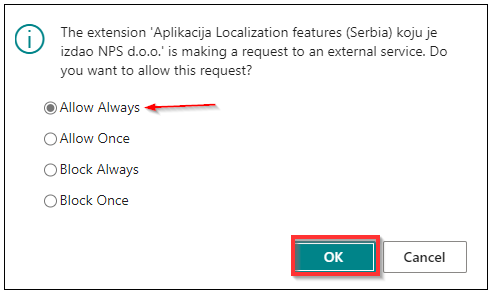
- When downloading for the first time, confirm the prompt by selecting Allow Always.

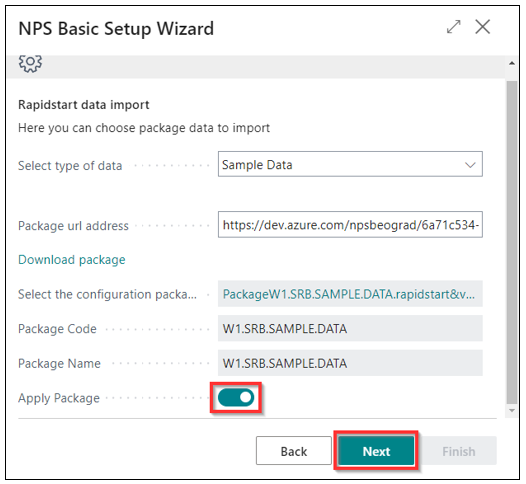
- Check Apply Package and click Next.
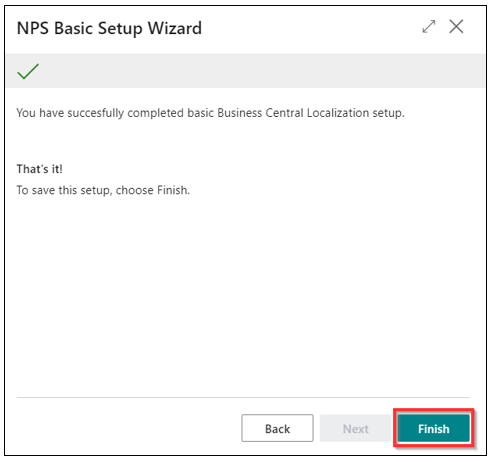
- Click Finish to complete the process.
Premium Experience
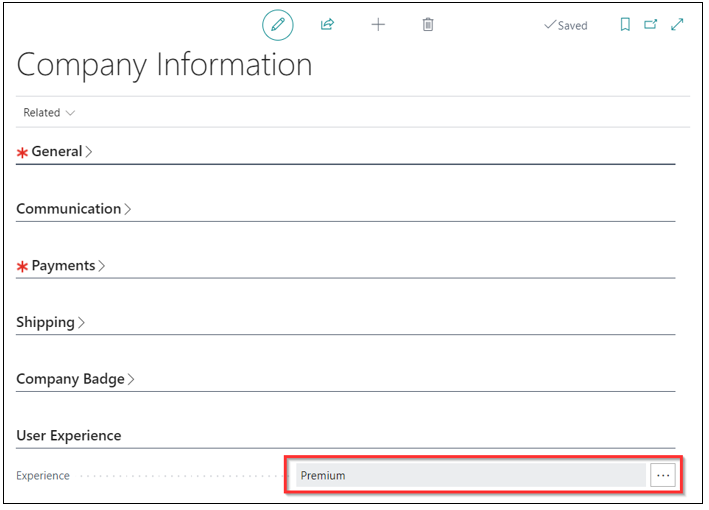
After completing all steps for importing the package, additional configuration is required under Company Information → User Experience → Premium:
-
Enter Company Information in the search bar to access the page.
-
Adjust the options as shown in the provided image.
-
Enable Help Assumes Premium Experience.
All features described in the Business Central user documentation assume the Premium experience, which includes the full range of User Experience elements.
Need more help?