Cash Desk in Business Central
Cash Desk in Business Central is a functionality used to record and monitor cash receipts and cash payments. It enables the management of cash desk transactions, control of cash balances, definition of limits for cash receipts and cash withdrawals, as well as the creation of cash desk reports in accordance with the company's business requirements.
Cash desk settings
The first step in the process is cash desk setup, which begins on the General Ledger Setup page.
• On the Cash Desk tab, configure Cash Desk Nos.
• Select Cash Desk Report Mandatory - Specifies that a cash desk report is required for each new cash desk.
Additionally, on the Cash Desk tab of the General Ledger Setup page, you can define default limits in the following fields:
• Default Cash Wdr. Limit (LCY) - Specifies the highest amount that can be withdrawn from a cash desk.
• Default Cash Receipt Limit (LCY) - Specifies the highest amount that can be paid to a cash desk.
• Enable Ext. Cash Order Attachments - Specifies whether attachments for cash orders are stored externally.

Report Selection – Cash Desk Setup
The second step is setting up Report Selection – Cash Desk.
In the search bar, enter Report Selection – Cash Desk.
On the Report Selection – Cash Desk page, select the following reports:
• Report ID 49021205 – Cash Order
• Report ID 49021210 – Posted Cash Order
• Report ID 49021206 – Cash Desk Report

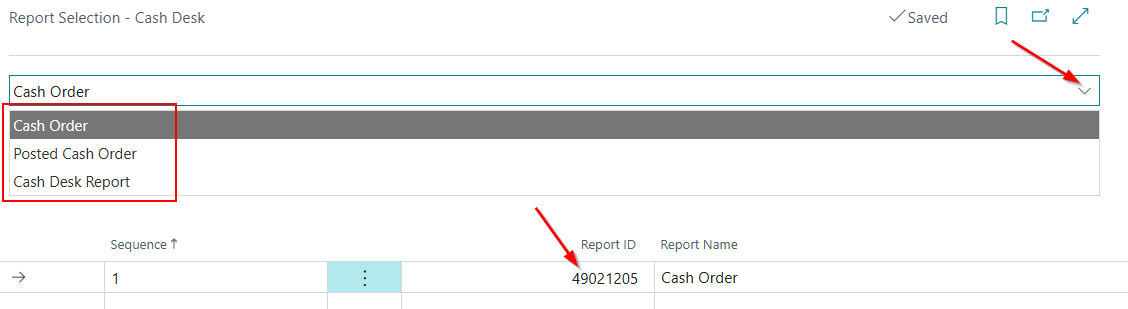
Reports are selected from the drop-down list at the top of the page, while the corresponding report ID is assigned in the Report ID field. By installing the NPS localization package, these reports will be configured automatically.
Cash Desk Creation
The third step is creating a cash desk.
-
In the search bar, enter Cash Desk Account List.
-
The list of Cash Desks will be open.
-
Run the New Action.
-
The New action opens the cash desk card, where you can enter all necessary details for the newly created cash desk.

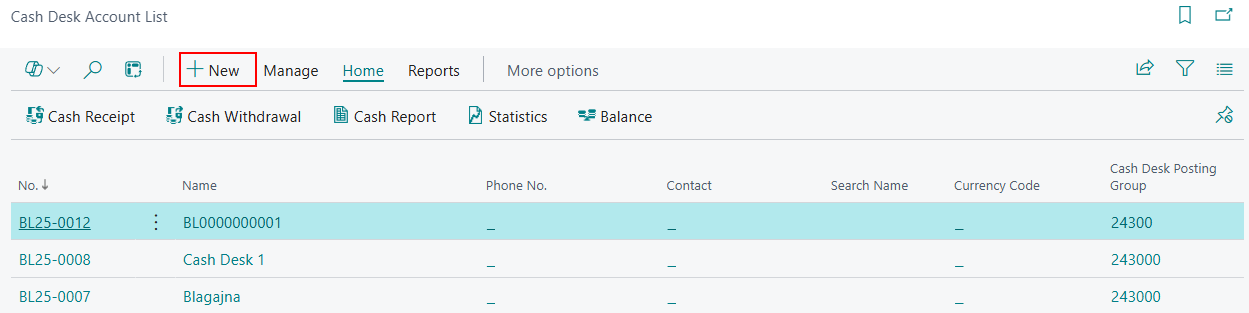
Creating a Cash Desk Card
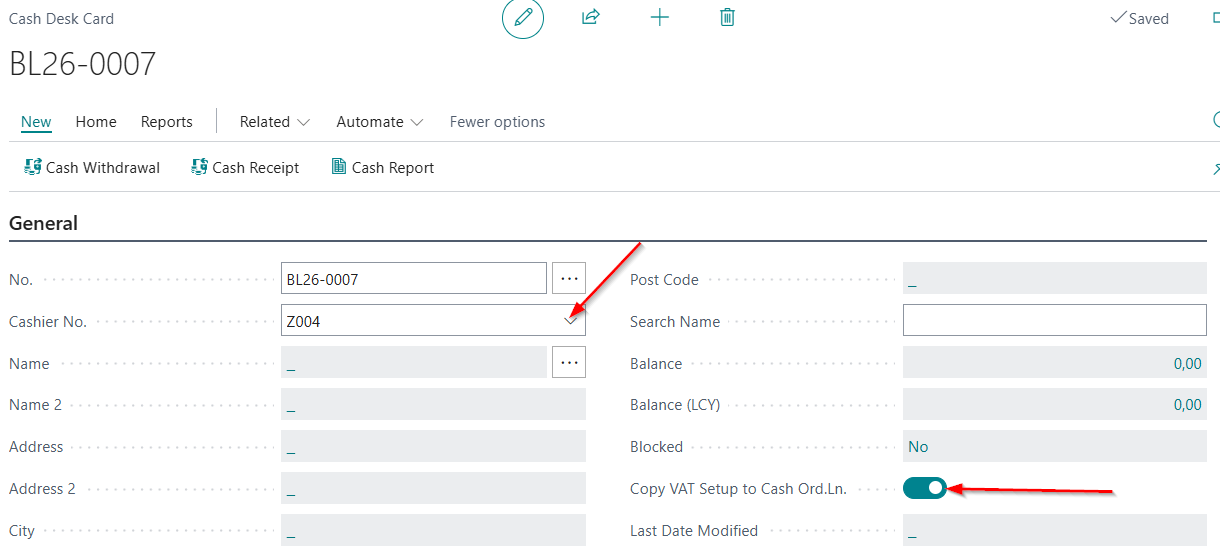
- On the General tab, the following fields need to be filled in:
• No. – Specifies the cash desk number based on the assigned number series.
• Cashier No. – Enter the cashier number from the drop-down list or create a new cashier.
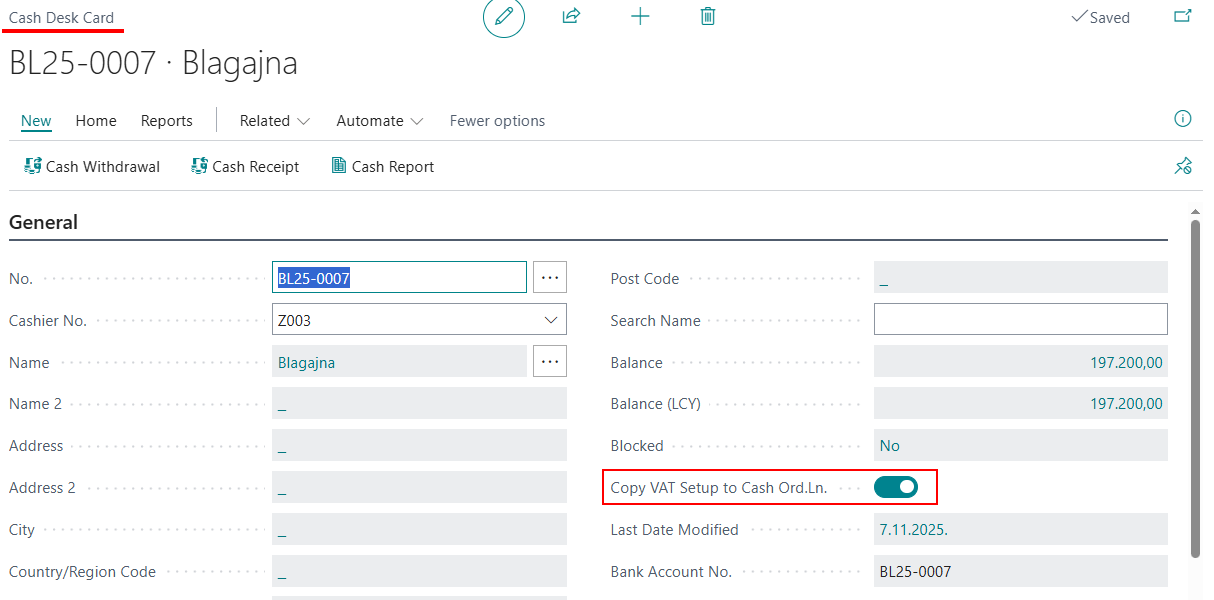
• Copy VAT Setup to Cash Ord.Ln. - Check this field if you want to post transactions involving VAT through the cash desk.
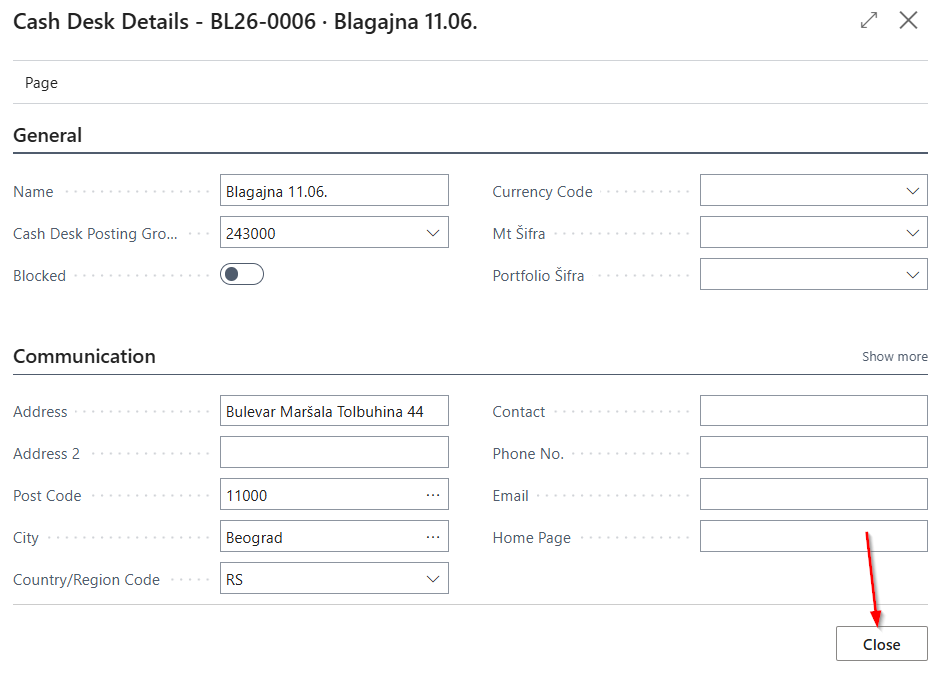
Name – click the ellipsis, after which a new page Cash Desk Details will open, where additional data is entered and completed:
• Name
• Cash Desk Posting Group - the field is mandatory
• Currency Code – left blank for cash in the domestic currency, for foreign currency cash, the field is mandatory.
• Address
• Post Code
• City
• Blocked – used when you want to block a specific cash desk. This option indicates that the cash desk is blocked for posting transactions and for further use in operations.
After filling in the data on the Cash Desk Details page, click Close. All entered data will be transferred to the cash desk card.
- On the Posting tab of the Cash Desk Card, it is mandatory to define the following fields:
• Cash Posting Level - Specify whether transactions are posted at the level of the Cash Order or at the level of the Cash Desk Report.
• Cash Order Receipt Nos. - assign a number series
• Cash Order Withdrawal Nos. - assign a number series
• Cash Desk Report Nos. - assign a number series

Opening Cash Report
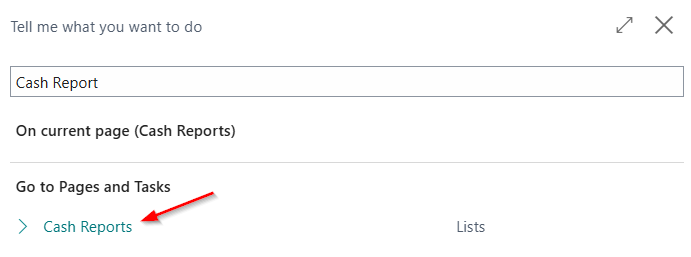
After creating the cash desk, it is necessary to open the cash report. In the search field, enter Cash Reports. Click New to create a new cash report.
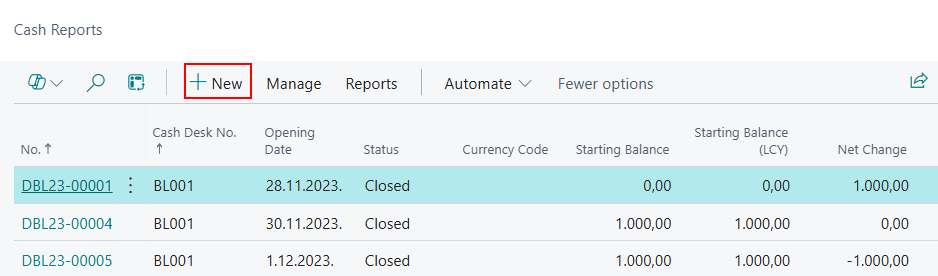
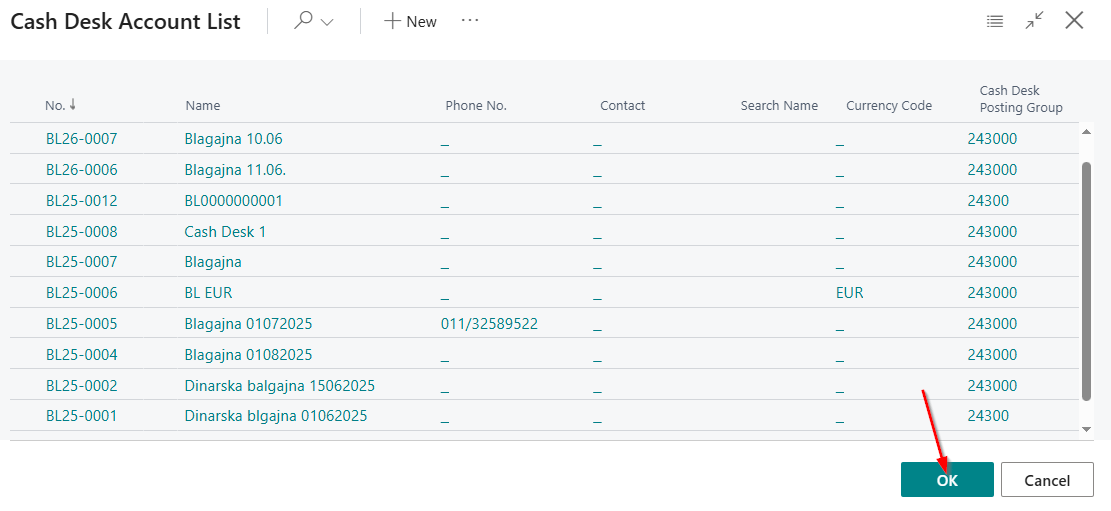
Select the Cash Desk – if multiple cash desks exist in the system, a window will open allowing you to choose the cash desk for which you are creating the cash report.
Cash Report statuses
• Each cash desk can have only one Cash Report with the status Open.
• All other Cash Reports for that Cash Desk must have the status Closed.
• If this condition is not met, the system will display a warning when creating a new Cash Report:
“There is already an open cash report for the cash desk...“
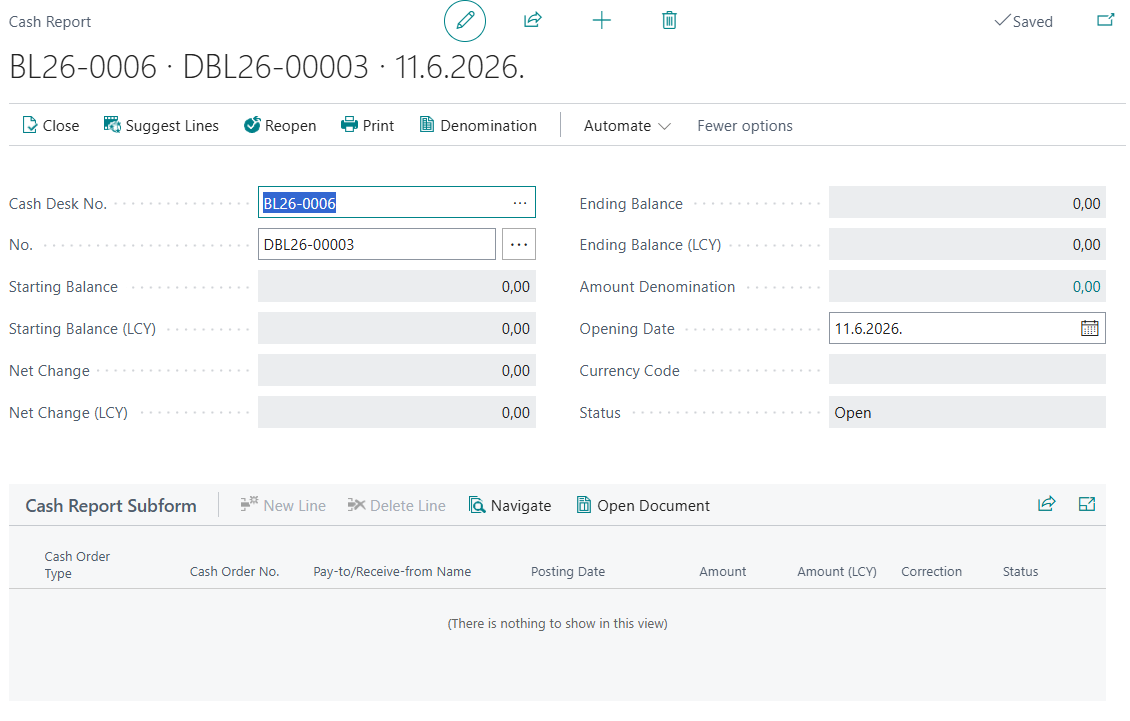
When a cash desk is selected for which the Cash Report is being created, the Cash Report opens, containing the following fields:
• No. – represents the cash report number, assigned according to the defined number series.
• Opening Date – enter the date for which the cash report is being created.
• Opening Balance – automatically taken from the previous Cash Report. For each new Cash Report, the opening balance is entered, which represents the closing balance of the previous Cash Report.
• Currency Code – automatically inherited from the cash desk card.
• Status – the status of the current cash report is Open. The status remains Open until the Close action is executed on the Cash Report. This action can only be performed after all postings have been entered.
• Cash Report Subforms – automatically populated when posting or issuing cash receipt or cash withdrawal orders, depending on the defined cash posting level.
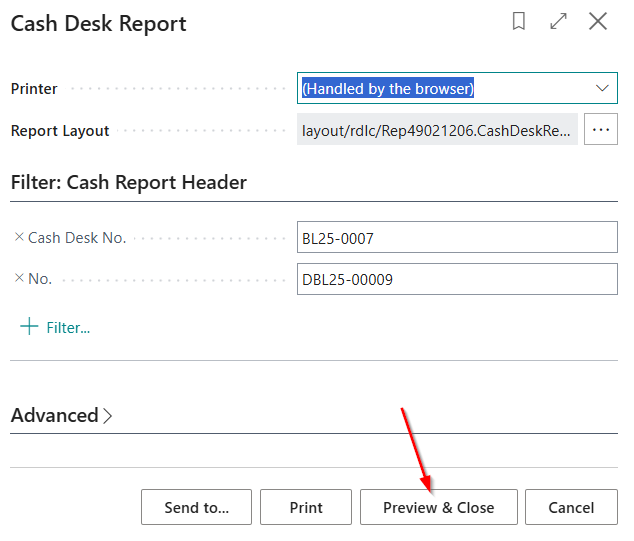
Printing the Cash Report - The Print action is available on the Cash Report page. Printing is executed after all postings for that Cash Report have been completed.
Creating a Cash Receipt
After opening the Cash Report, the process continues with creating a Cash Receipt. Enter Cash Receipt List in the search field.

Select the New action to create a new receipt. If multiple cash desks exist in the system, a window will open where you can select the cash desk for which the Cash Receipt is being created.
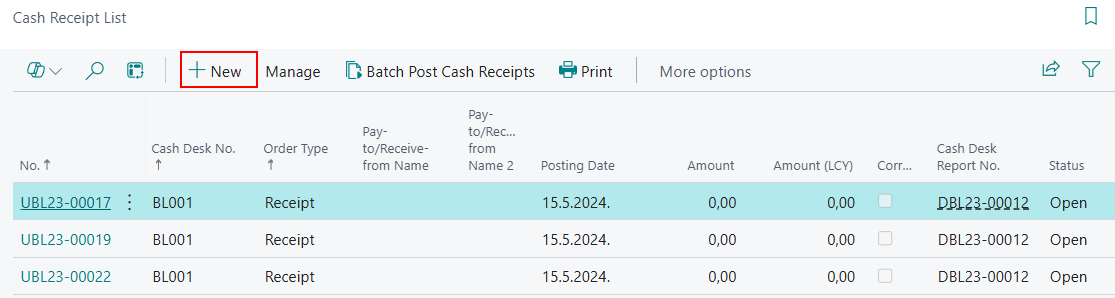
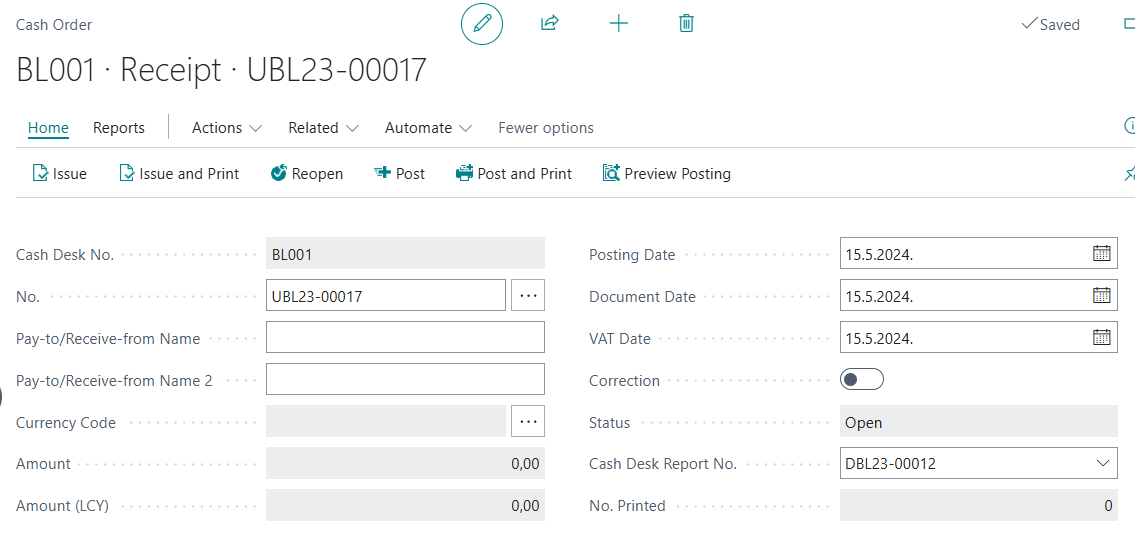
The Cash Receipt consists of two parts: Header and Lines.
- The Header contains:
• Cash Desk No. – specifies the cash desk number associated with the Cash Receipt.
• No. – represents the Cash Receipt number and is assigned from the defined number series.
• Currency Code – specifies the currency and is automatically inherited from the Cash Desk Card.
• Posting Date – specifies the date on which the Cash Receipt posting will be recorded.
• VAT Date – specifies the VAT date.
• Document Date – specifies the date on which the Cash Receipt was created.
• Status – the status of the current Cash Receipt is Open. The status can also be Issued. The Issue action is executed after all receipt lines have been entered. Once the Cash Receipt is in the Issued status, no further changes can be made to it.
• Cash Desk Report No. Specifies the number of the Cash Desk Report associated with the Cash Receipt.
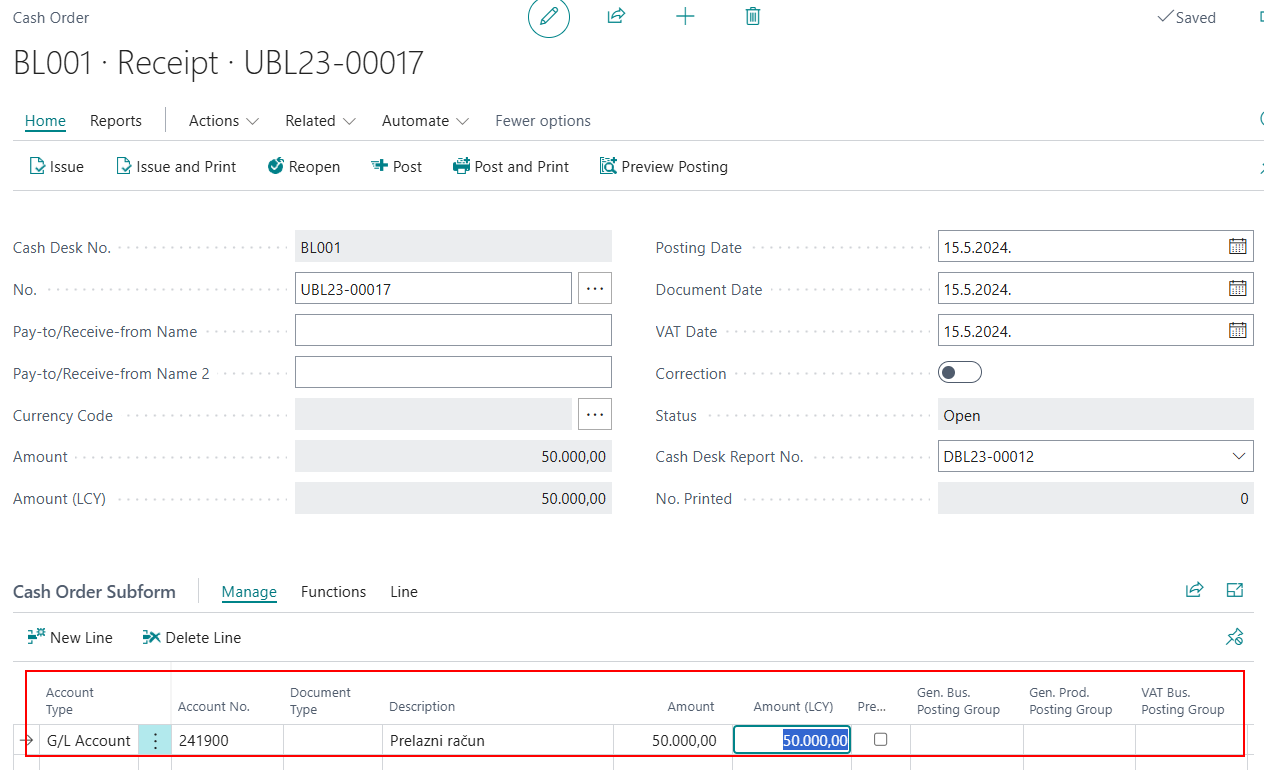
- Cash Receipt Lines
The Cash Receipt Lines contain the details of the transaction being received. For each line, the Account Type, Account No., and Amount must be specified.
After all lines have been entered, the Issue action can be executed, followed by the Post action. Posting the Cash Receipt automatically creates a corresponding receipt entry in the Cash Report opened for the cash desk to which the receipt is being posted.
Creating a Cash Withdrawal
Enter Cash Withdrawals in the search. Select the New action to create a new voucher. If multiple cash desks are set up in the system, a window will open where you can select the cash desk for which the cash withdrawal voucher will be created.
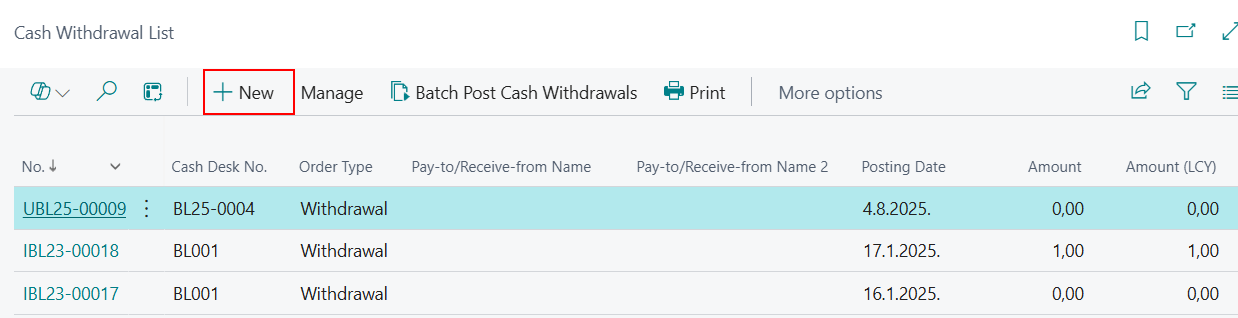
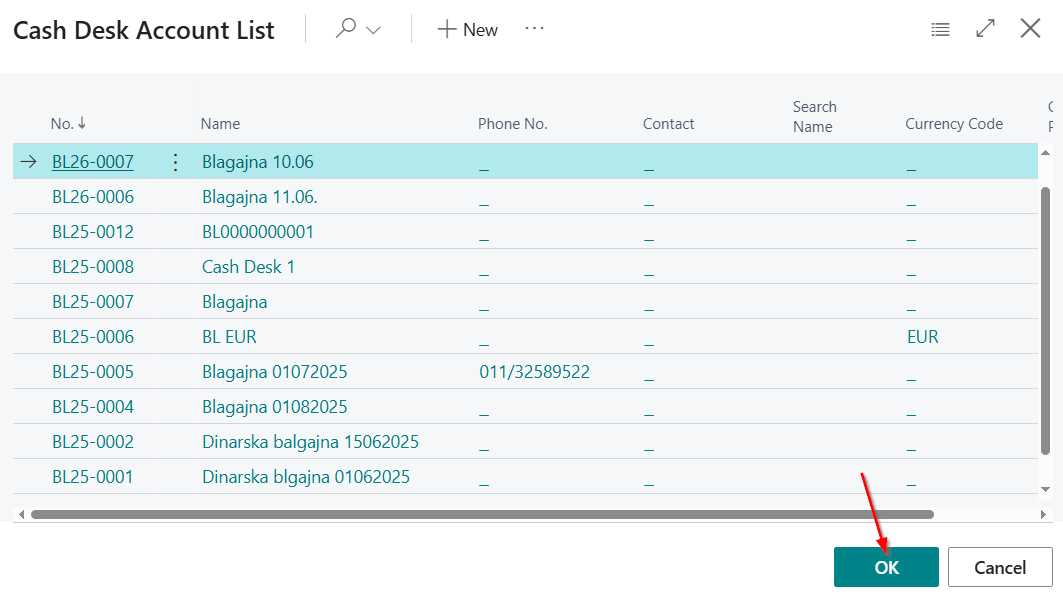
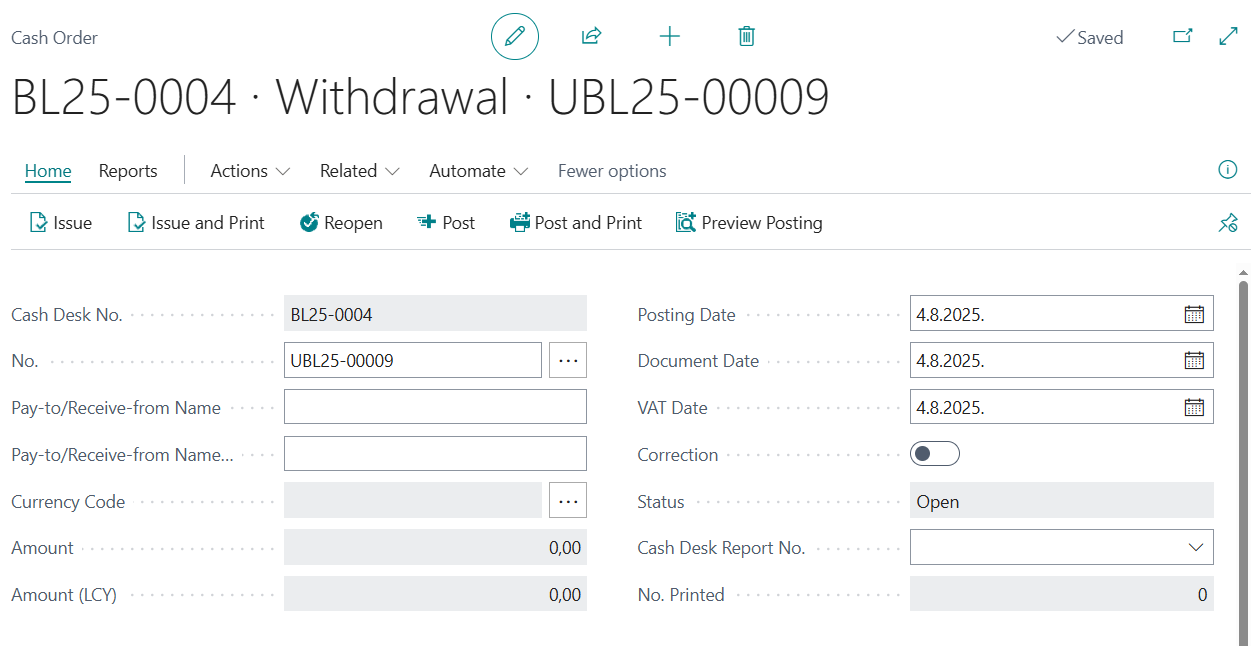
Structure of the Cash Withdrawal consists of: Header and Lines.
- The Cash Withdrawal Header contains:
• Cash Desk No. – Specifies the cash desk number associated with the cash withdrawal voucher.
• No. – The cash withdrawal number, assigned automatically from the predefined number series.
• Currency Code – Specifies the currency. It is automatically transferred from the cash desk card.
• Posting Date – Specifies the date on which the cash withdrawal posting will be recorded.
• VAT Date – Specifies the VAT date.
• Document Date – Specifies the date on which the cash withdrawal voucher was created.
• Status – The status of the current cash withdrawal voucher is Open. The status can also be Released. The Release action is used when all withdrawals have been entered on the voucher. Once the cash withdrawal voucher is in the Released status, no further modifications are allowed.
• Cash Desk Report No. Specifies the number of the Cash Desk Report associated with the Cash Withdrawal.
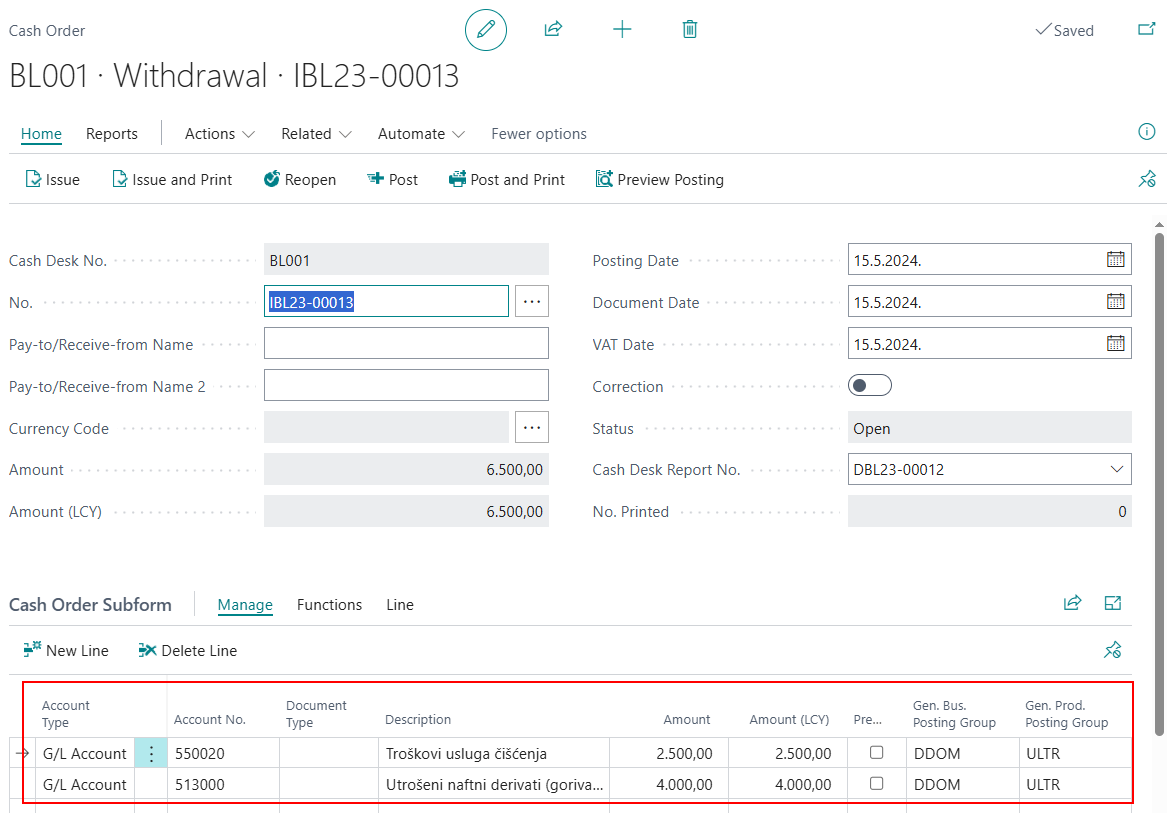
- Cash Withdrawal Lines contains:
The lines of the Cash Withdrawal contain the entries that are subject to the cash withdrawal. These can be account types such as General Ledger Accounts, which are posted to expense accounts, or accounts used for employee advance payments.
After all lines have been entered, the Release action can be performed, followed by the Post action. When the Cash Withdrawal is posted, a corresponding withdrawal line is automatically created in the Cash Journal associated with the Cash Desk for which the Cash Withdrawal is being posted.
Printing the Cash Withdrawal can be initiated directly from the Cash Withdrawal document. The Print action can be performed after all required information has been entered into the document.
Copy VAT Setup to Cash Receipts/Withdrawal
On the Cash Desk Card, the Copy VAT Setup to Cash Ord.Ln. action must be enabled. When this option is activated, posting groups are automatically populated on the lines of cash receipt and cash withdrawal documents.
The system retrieves posting groups from the General Ledger account specified on each cash receipt or cash withdrawal line, provided that they are defined on the card of that account. If they are not defined on the General Ledger account card, the user must enter them manually on the lines of the cash receipt and cash withdrawal documents.
Revers Cash Receipt / Cash Withdrawal
If it is necessary to correct any Cash Receipt or Cash Withdrawal document, this can be done in two ways:
- By manually creating a reversal Cash Receipt or Cash Withdrawal document.
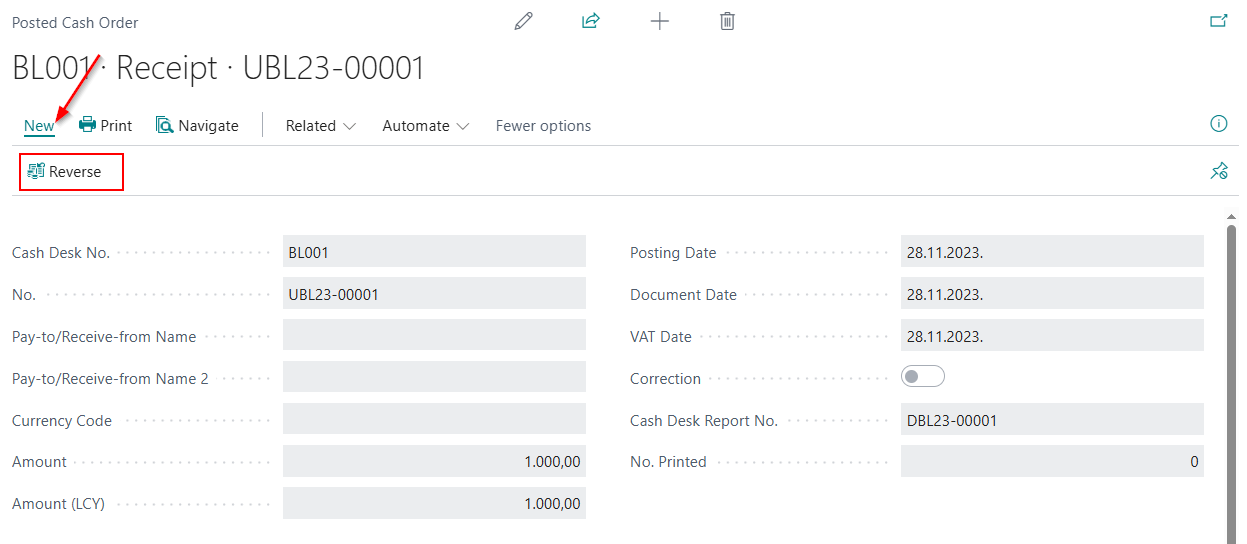
- By using the Reverse action on a posted Cash Receipt or Cash Withdrawal document.
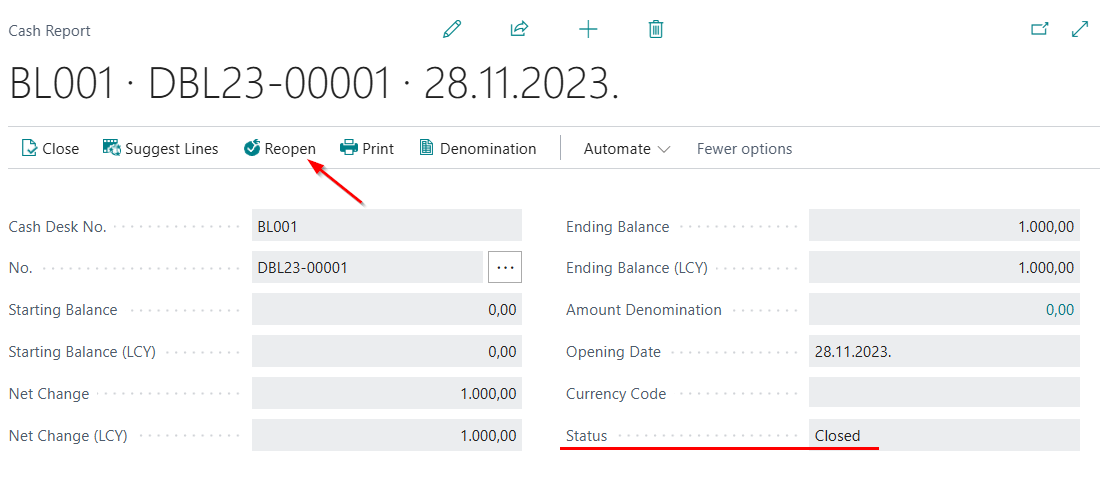
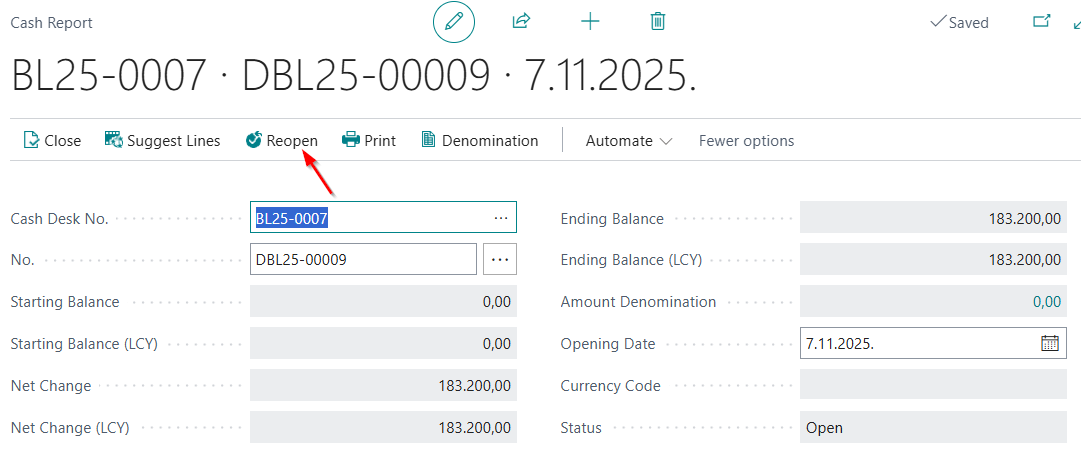
Important note - Each Cash Receipt and Cash Withdrawal document is linked to a specific Cash Journal and is visible within that journal. The reversal is performed on the Cash Receipt or Cash Withdrawal document itself, but since the document is linked to the Cash Journal, the journal must be in Open status in order for the reversal to be carried out. The Reopen action is available on the Cash Journal page.
Manually creating a reversal order Cash Receipt/Cash Withdrawa
To perform a correction, follow these steps:
-
Enter Posted Cash Receipts or Posted Cash Withdrawals in the search
-
Select the New action and create a new Cash Receipt or Cash Withdrawal document on which the reversal will be performed.
-
In the header(Cash Receipt / Cash Withdrawa), select the Correction option.
-
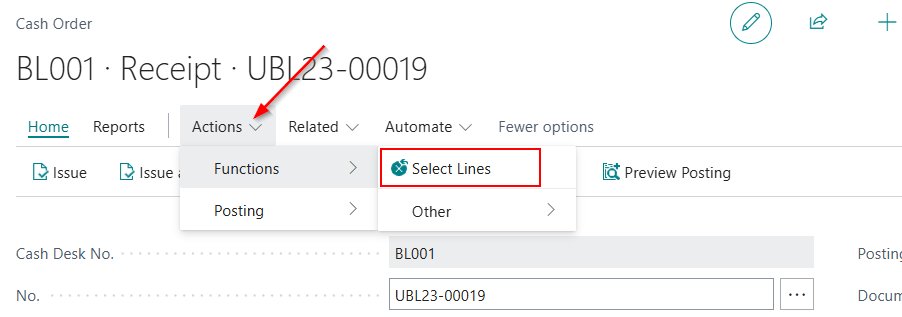
Go to the Actions tab and choose Select Lines.
- A new window will open, displaying all posted lines for that cash order lines.
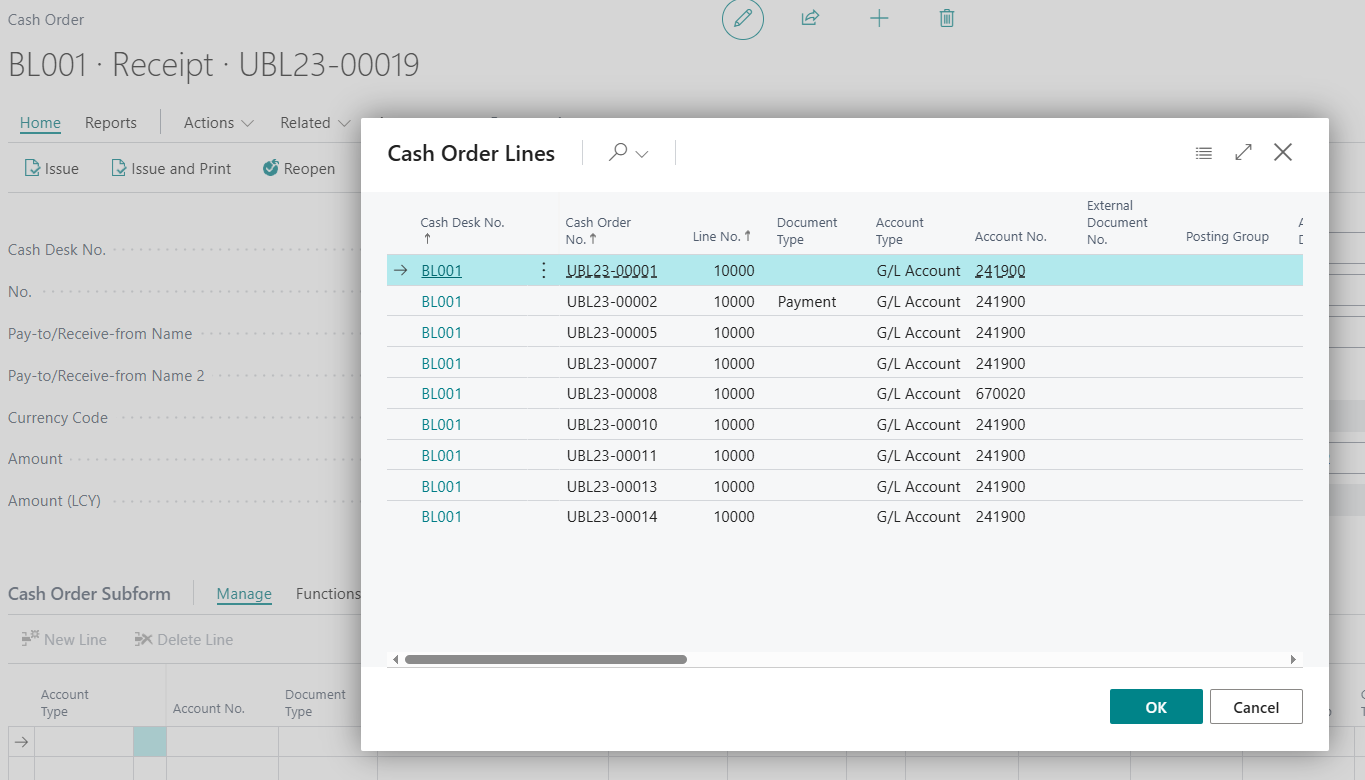
- Select the specific entry you want to correct.
-
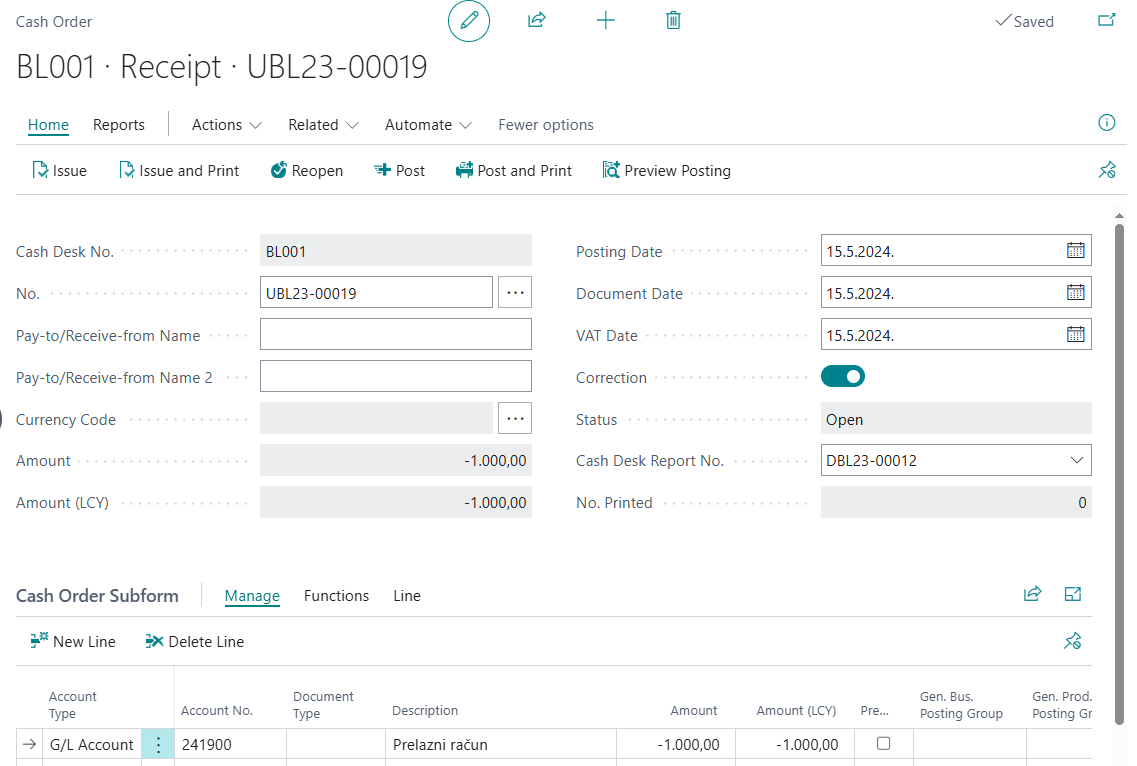
The selected entry will be added to the order lines with a negative sign.
-
When the order is posted, the selected entries will be reversed.
Revers a posted order Cash Receipt/Cash Withdrawa
If you want to reverse an entire Cash Receipt or Cash Withdrawal document, the reversal must be initiated from the posted Cash Receipt or Cash Withdrawal document.
Enter Posted Cash Receipts or Posted Cash Withdrawals in the search, and then select the document that you want to reverse.
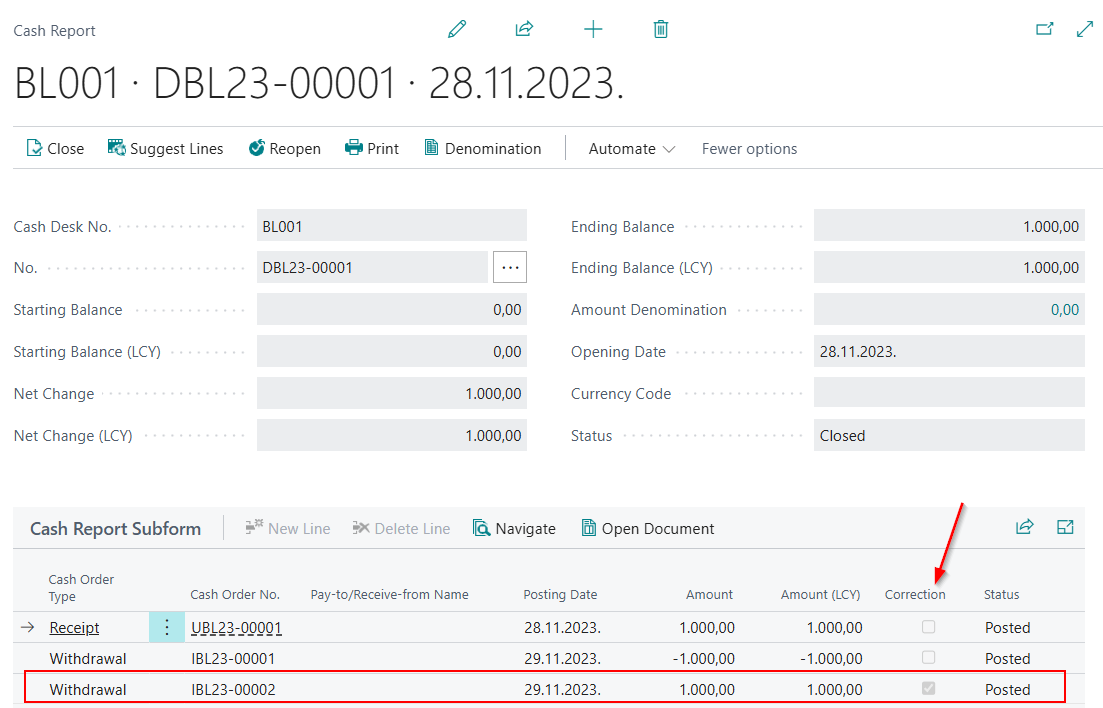
The action is initiated by selecting New → Reverse from the selected Cash Receipt Order or Cash Withdrawal Order. The system automatically creates a new cash receipt or cash withdrawal order that reverses the selected entries from the previously posted order. After the reversal order is posted, a new line marked as Reversal is created in the Cash Report, representing the reversal of the original order.
Open/Close and Print the Cash Report
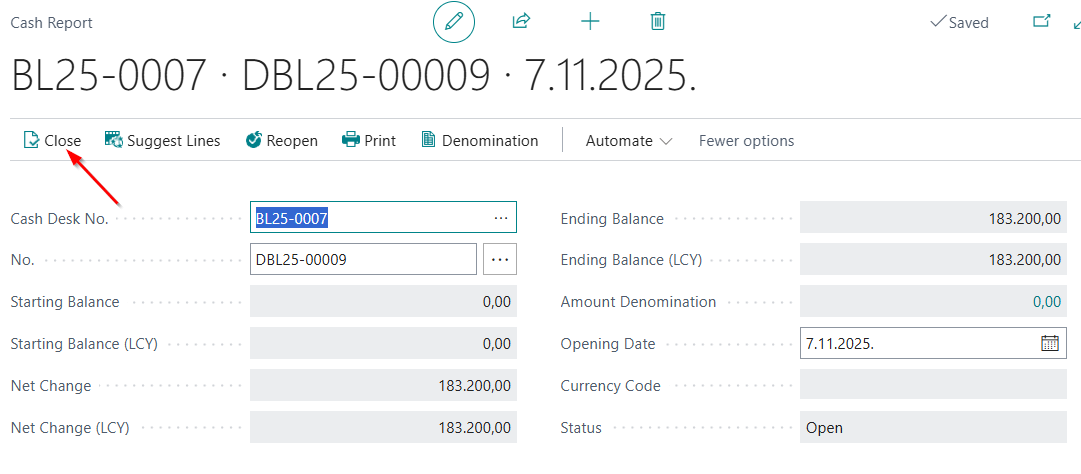
After all transactions have been entered and posted, the status of the Cash Report must be changed from Open to Closed. Once all cash receipt and cash withdrawal orders have been posted, the Cash Report should be closed.
The Close action is available on the Cash Report page. When the Close action is executed, the status of the Cash Report changes from Open to Closed. While the Cash Report is in the Closed status, no modifications can be made, and no new cash receipt or cash withdrawal orders can be created or posted.
If corrections are required, the Cash Report can be reopened using the Reopen action. Once the Cash Report has been reopened, cash receipt and cash withdrawal orders can be modified as needed. After all necessary changes have been made, the Cash Report must be closed again.
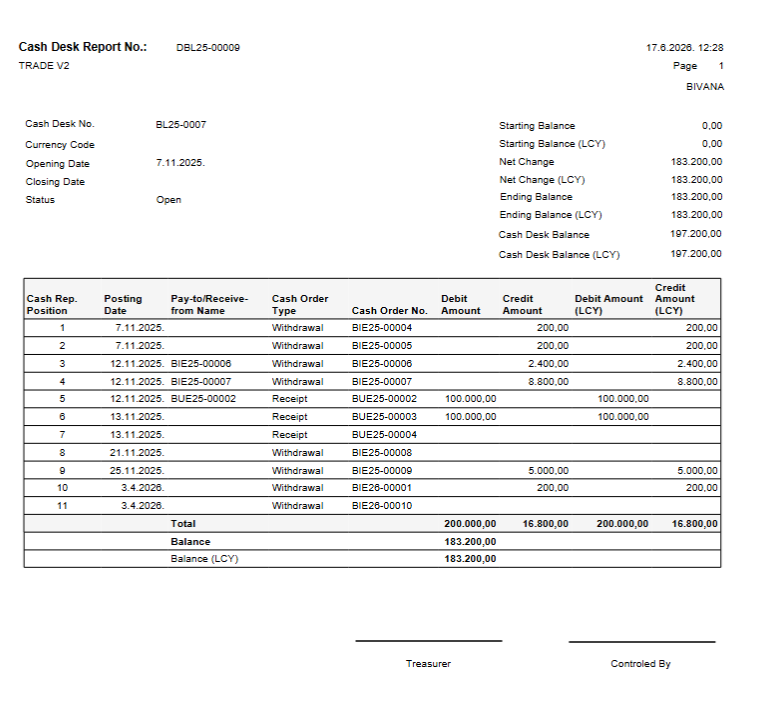
The Cash Report can be printed by using the Print action on the Cash Report page. The printed Cash Report includes information such as the Opening Date, Closing Date, Status, Posting Date, Cash Desk No., Cash Report No., Opening Balance, Closing Balance, Final Balance, and Net Change. The report lines display all cash receipts and cash withdrawals recorded for the cash desk.
Need more help?