CCV - Same Numbering for Contacts/Customers/Vendors
This functionality was developed to ensure that when creating a contact, from which a customer or vendor is later created, the number series is not incremented. Instead, the same number from the number series is used for both the contact and the customer/vendor created from that contact.
Contact/Customer/Vendor Numbering Setup
To enable creating a new vendor/customer from the contact card, use the search (Tell Me) function and enter Marketing Setup. On the Numbering tab, assign a number series in the Contact Nos. field, and enable the options Contact – Vendor Same No. and Contact – Customer Same No..
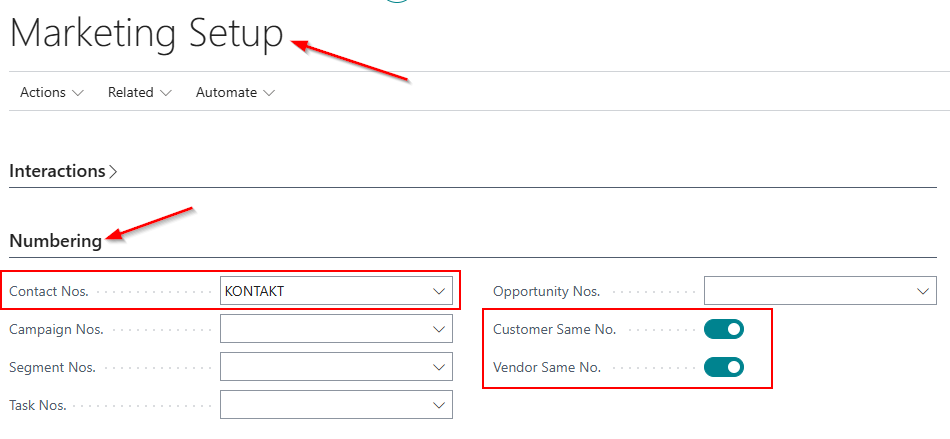
For this setup to work correctly, it is necessary to define the appropriate number series on the Sales & Receivables Setup page and the Purchases & Payables Setup page, under the Number Series tab. There are two options available within this setup:
1. Same number series as contacts
In this case, the same number series is used for contacts and for customers/vendors. This means that:
-
When a customer or vendor is created directly from the master data, a contact will be automatically created using the same number series.
-
When a contact is created first, and a customer/vendor is then created from the contact card, all entities will share the same numbering.
2. Different number series from contacts
In this case, customers/vendors use a separate number series, independent from contacts. This means that:
-
When a customer/vendor is created directly from the master data, a contact is also automatically created and it inherits the customer/vendor number series.
-
When a contact is created first, and a customer/vendor is then created from the contact card, the customer/vendor takes over the contact number series.
This setup enables control over the assignment of number series and the linking of contacts with customers and vendors.
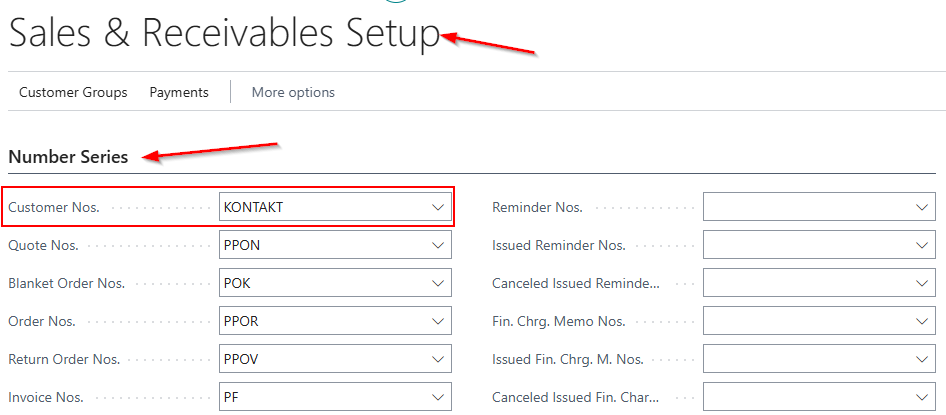
Enter Sales & Receivables Setup in the search (Tell Me) feature, and on the Number Series tab, fill in the Customer Nos. field with the appropriate number series.
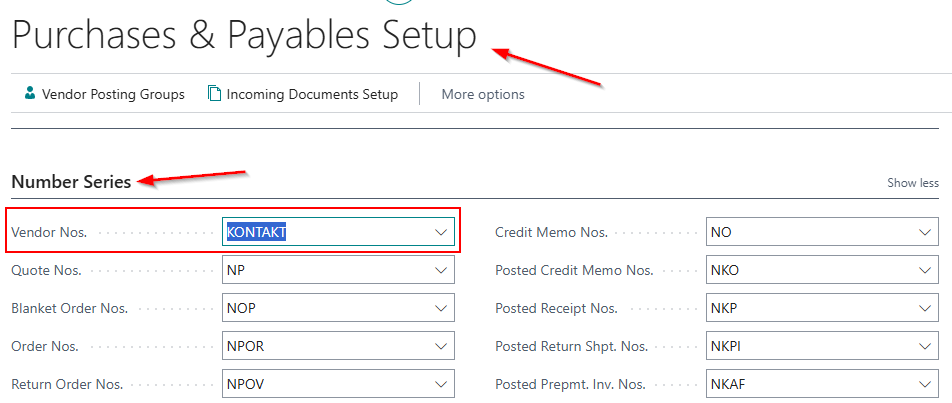
Then repeat the same process in Purchases & Payables Setup, under the Number Series tab, and also assign the appropriate number series in the Vendor Nos. field.
Creating a Customer/Vendor from the Contact Card
If the contact card has not been created yet, it must be created first. Enter Contacts in the search (Tell Me) field and select the New action.
On the contact card, enter all required information:
-
On the General tab, enter the contact name and contact type
-
On the Communication tab, enter the address, country/region code, postal code, city, contact details, and any other necessary information
If the contact already exists and a customer and/or vendor needs to be created based on it, this can be done using the create function available both on the contact list and on the contact card.
It is created by selecting the contact and choosing the action: Actions – Functions – Create as:
-
Customer
-
Vendor
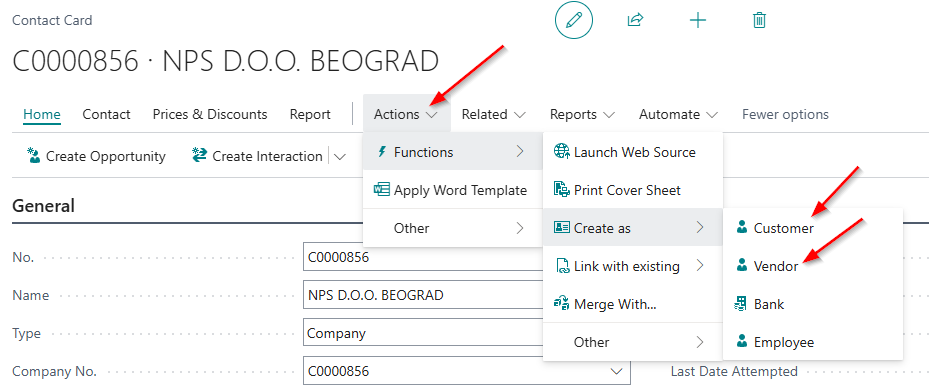
A new page opens for selecting the template for the new customer or vendor, depending on the selected type (foreign customer, foreign vendor, domestic customer, domestic vendor, parent company customer, parent company vendor, etc.).
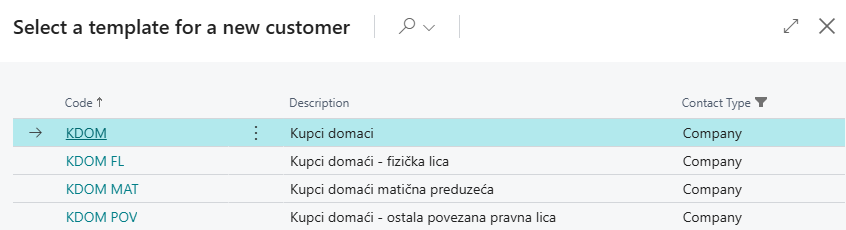
After selecting the desired template, a customer card or vendor card will be created. The newly created customer or vendor can be viewed in the Customers list or the Vendors list.
Creating a Contact Card from a Customer or Vendor
This process is used in cases where customers/vendors were created before activating the Customer/Vendor Same No. setup. In such cases, when the customer or vendor was created, a contact card was not automatically generated.
In other words, the previously described setup was not active at that time, so the existing customers/vendors do not exist in the Contacts list.
To correct this, it is first necessary to complete the setup described above, and then run the appropriate process. Enter one of the following options in the search (Tell Me), depending on the need:
-
Create Contact from Customer
-
Create Contact from Vendor
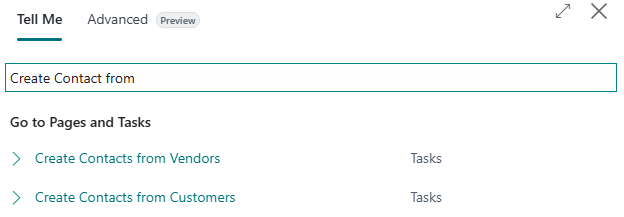
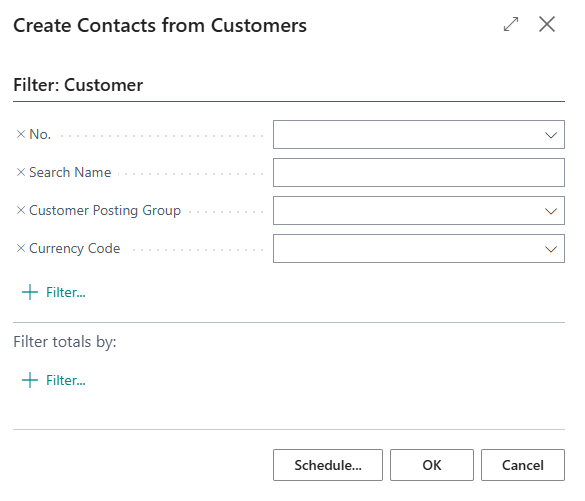
- Create Contact from Customers - opens a page for further processing. If there are customers in the system that are not present in the Contacts list, you can use filters to select which customer should be used to create a contact. In the filter, specify the customer from which you want to create a contact:
- No. – Represents the unique customer code in the system.
- Search Name – Used for easier identification of the customer. It usually contains a shortened name, part of the name, or the name commonly used for searching.
- Customer Posting Group – Defines how transactions are posted in the general ledger and determines which accounts are used for customer related postings. This setup is important for correct financial recording.
- Currency Code – Defines the currency in which customer transactions will be processed. If not filled in, the company’s local currency is used.
Click OK. A contact with the same number as the customer will be created and added to the Contacts list.
Create Contact from Vendors opens a page for further processing. If there are vendors in the system that are not present in the Contacts list, you can use filters to select which vendor should be used to create a contact.
In the filter, specify the vendor from which you want to create a contact:
- No. Represents the unique vendor code in the system.
- Search Name Used for easier identification of the vendor. It usually contains a shortened name, part of the name, or the name commonly used for searching.
- Vendor Posting Group Defines how transactions are posted in the general ledger and determines which accounts are used for vendor related postings. This setup is important for correct financial recording.
- Currency Code Defines the currency in which vendor transactions will be processed. If not filled in, the company’s local currency is used.
Click OK. A contact with the same number as the vendor will be created and added to the Contacts list.
Need more help?