Posting Description
The Posting Description function allows users to see a selected description on general ledger entries that they have configured themselves. This means you can add specific descriptions or explanations to the posted entries tailored to your accounting needs or requirements. This feature is useful for more detailed transaction tracking and better understanding of the purpose of entries in the general ledger.
The functionality is enabled for Sales, Purchase, and Service modules. The documents supported by this function are as follows:
Sale:
- Sales Blanket Order
- Sales Order
- Sales Quote
- Sales Invoice
- Sales Return Order
- Sales Credit Memo
Purchase:
- Purchase Blanket Order
- Purchase Order
- Purchase Quote
- Purchase Invoice
- Purchase Return Order
- Purchase Credit Memo
Service:
- Service Quotes
- Service Order
- Service Invoices
- Service Credit Memo
It is possible to create multiple codes for posting descriptions. The setup is done on the Posting Description page, where descriptions for purchases, sales, and services are defined. To access the page, enter Posting Description in the search field. Clicking on New will open a new row for data entry.
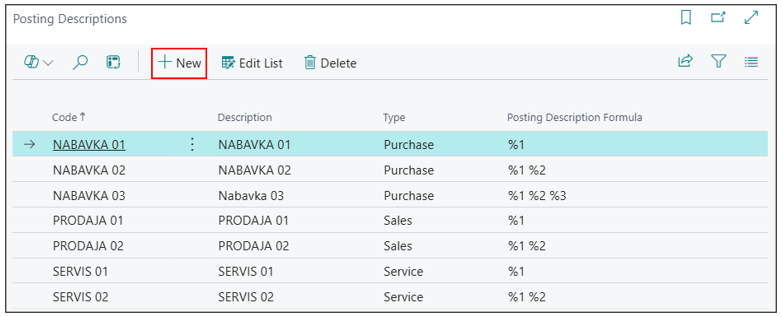
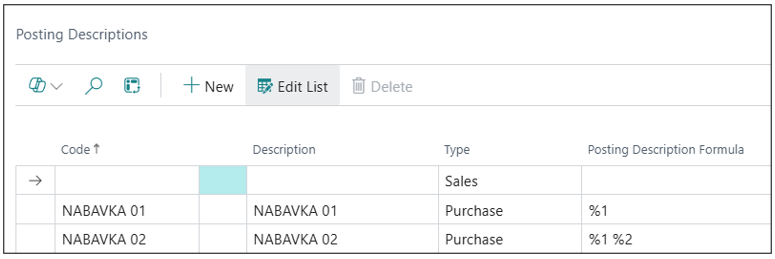
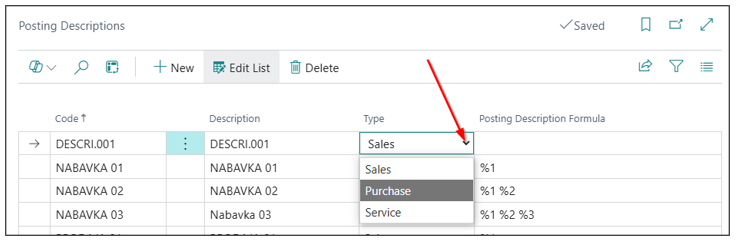
It is necessary to enter a Code, Description, Type (Sales, Purchase, Service), and Posting Description Formula. The Type is selected from a dropdown list, as shown in the image.
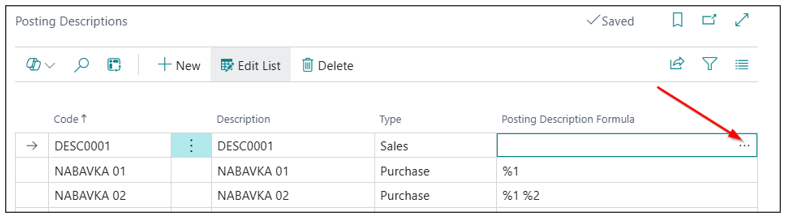
The posting description formula is created by clicking the three dots, as shown in the image. A new page will open, where you select the New option.
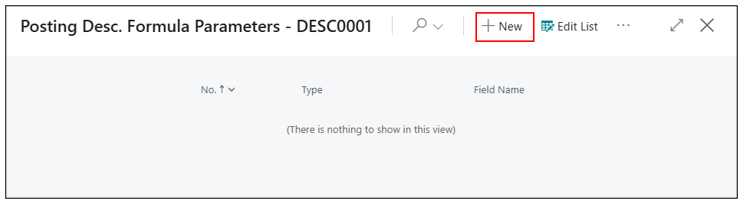
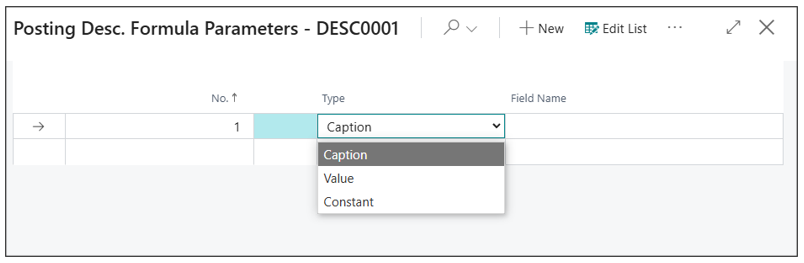
By clicking New, a new line is added with a line number and a type, which can be one of the following:
- Caption – displays only the name of the selected field.
- Value – displays the content (data) of the selected field.
- Constant – displays text manually entered by the user, which will always appear in the posting description.
These options allow for flexible creation of posting descriptions based on user needs. They can also be combined.
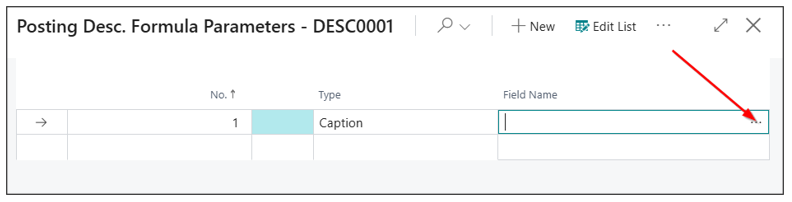
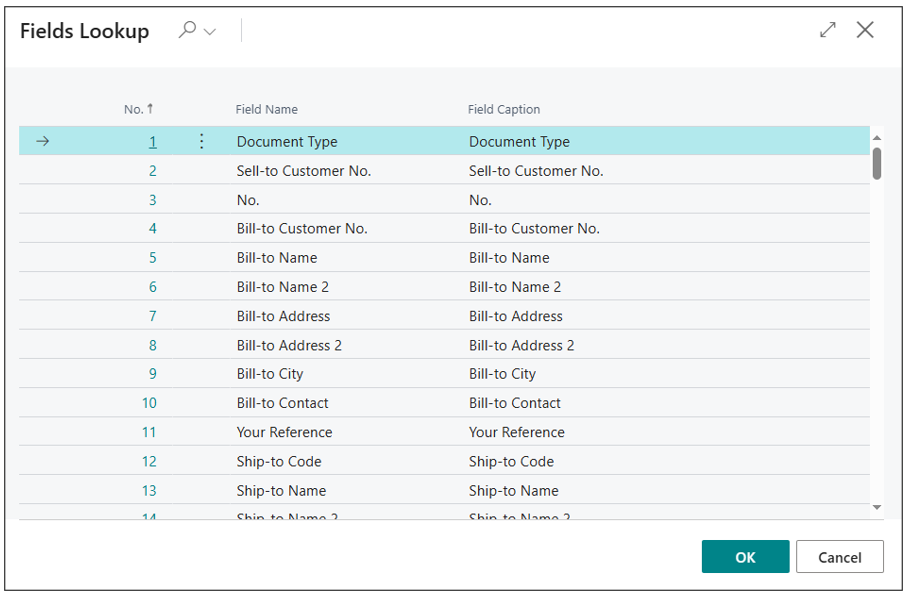
The field name is selected by clicking the three dots, which opens a page for field lookup. On this page, you can choose the field to be used in the posting description, depending on the selected display type (Caption or Value).
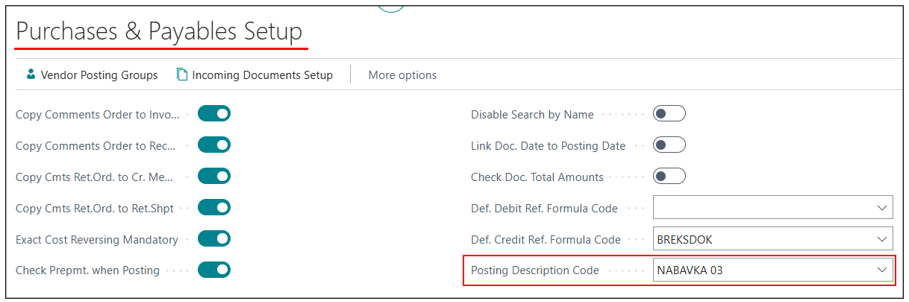
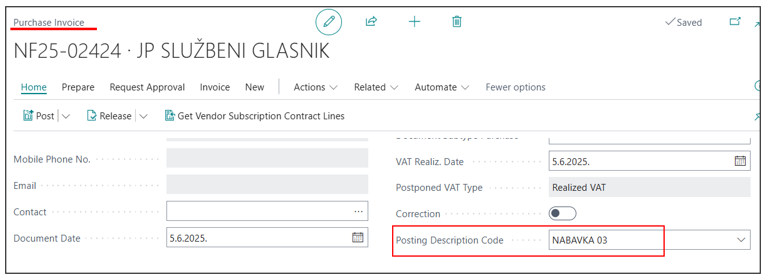
Once the posting description codes are defined, the next step is to enter them in the Posting Description Code field on the following pages:
- Sales & Receivables Setup
- Purchases & Payables Setup
- Service Management Setup
Need more help?