Localization - Bosnia and Herzegovina
Certain features within the Serbian localization are tailored to support regulatory and operational processes relevant to Bosnia and Herzegovina.
| Feature | Description | Release |
|---|---|---|
| VAT Records | The VAT legal regulation for Bosnia and Herzegovina is supported. | |
| Fiscalization for BIH | Connection with external services for fiscalization in Bosnia and Herzegovina is enabled. |
VAT Records – Bosnia and Herzegovina
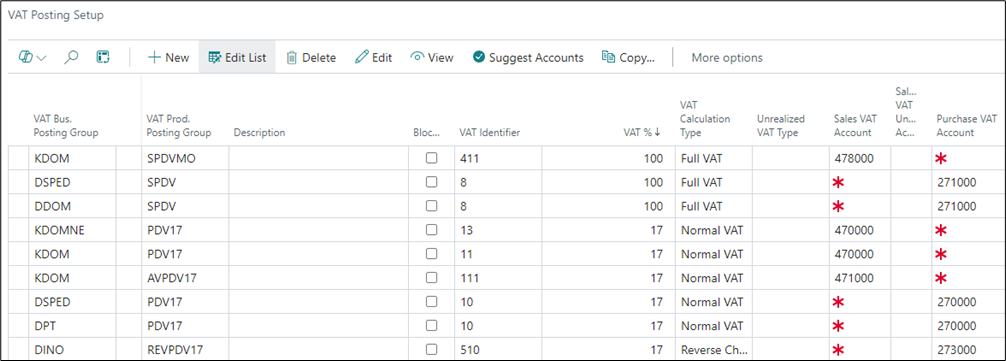
For the functioning of the VAT ledger and its reporting, the following setup is required. Enter VAT Posting Setup in the search bar. A window will open for configuring the VAT Business Posting Group and VAT Product Posting Group, with identifiers, VAT percentages, and VAT calculation types.
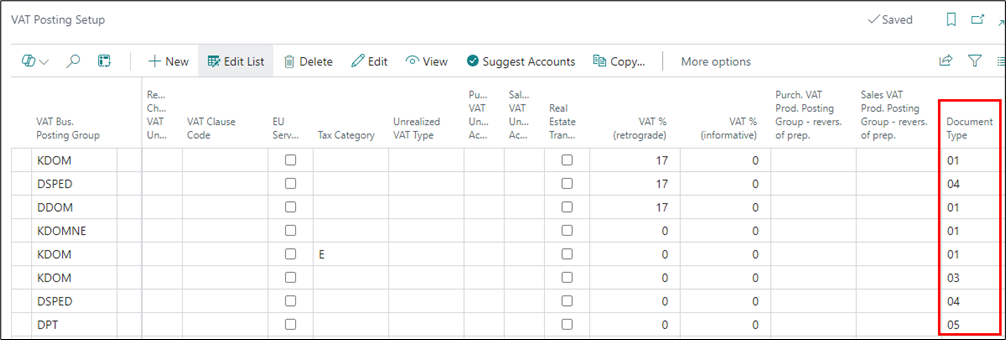
In the same VAT Posting Setup table, document types are entered in the Document Type field.
Sales Document Types:
01 – Sales invoices for goods and services
02 – Sales invoices for personal use (non-business purposes)
03 – Sales prepayment invoices
04 – Customs Declaration (Import)
05 – Sales Other invoices
Purchase Document Types:
01 – Purchase invoices for goods and services from domestic suppliers
02 – Purchase invoices for personal use (non-business purposes)
03 – Purchase prepayment invoices
04 – Customs Declaration (Import)
05 – Purchase Other invoices (invoices for services received from abroad)
VAT Books
To comply with legal requirements, a special VAT Books functionality has been created, allowing users to configure reports for the Purchase VAT Book (KUF) and Sales VAT Book (KIF). Within the same book, it is also possible to generate other specific overviews related to VAT records.
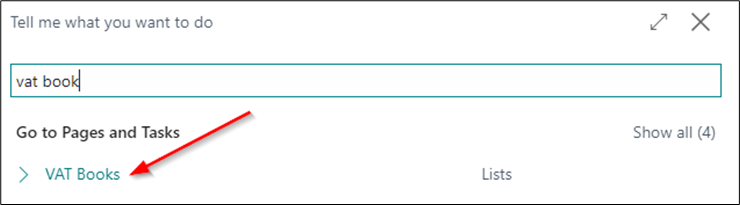
You can access VAT Books from the menu or by entering the keyword VAT Books in the search bar.
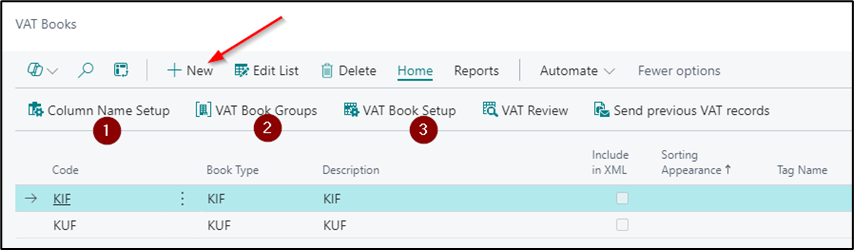
The VAT books should be defined so that each section within KUF and KIF represents a separate VAT book. For both books, the following settings need to be configured:
- Column names
- VAT book groups and identifiers
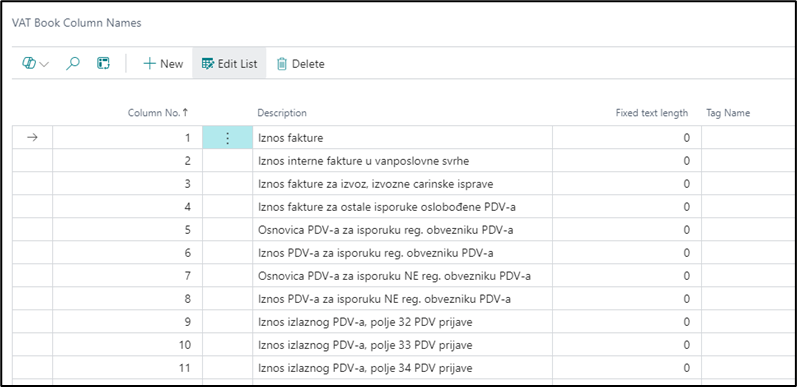
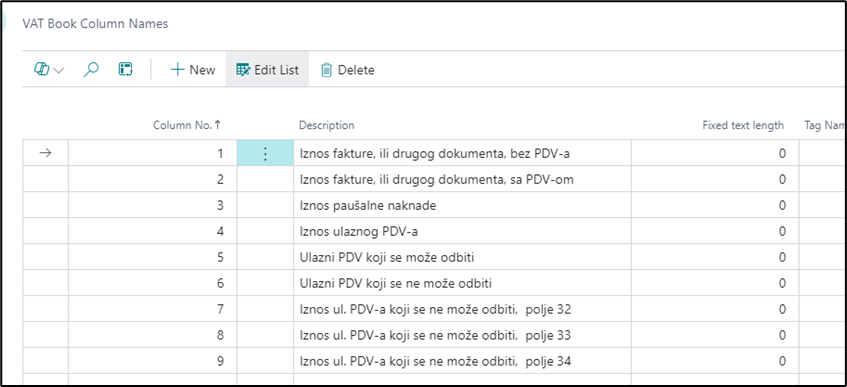
A new book is created by clicking the New option. Enter the VAT book code (KUF and KIF) in the Code field and the name of the book in the Description field. For each book, appropriate columns must be defined, as shown in the example image.
KIF
KUF
VAT Books Groups
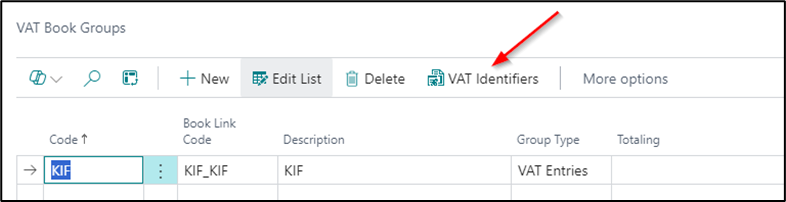
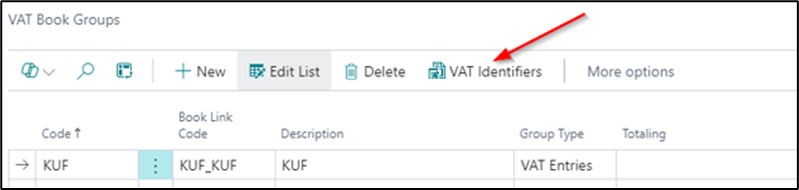
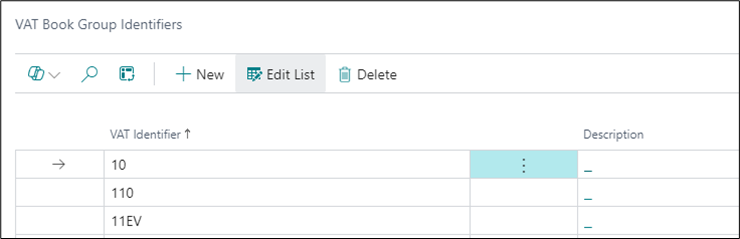
On the VAT Posting Groups page, you enter the VAT Identifiers that are defined in the VAT Posting Setup table. Clicking on VAT Identifiers opens a page for entering all defined identifiers. They are entered separately for KIF and KUF, with each ledger assigned its corresponding identifier.
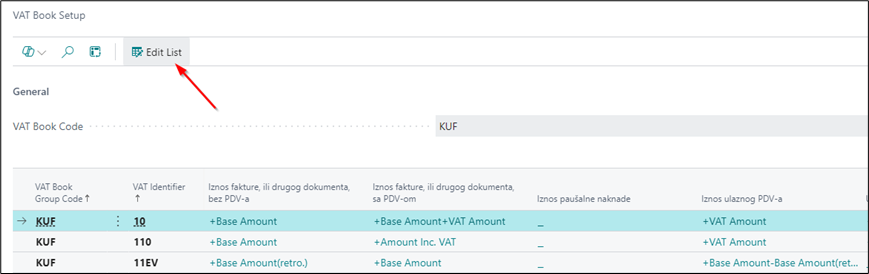
VAT Book Setup
This section displays the column names entered for the KUF and KIF books. By clicking Edit list, the fields can be modified.
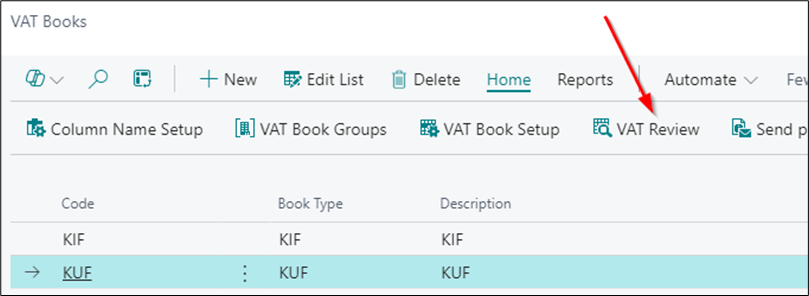
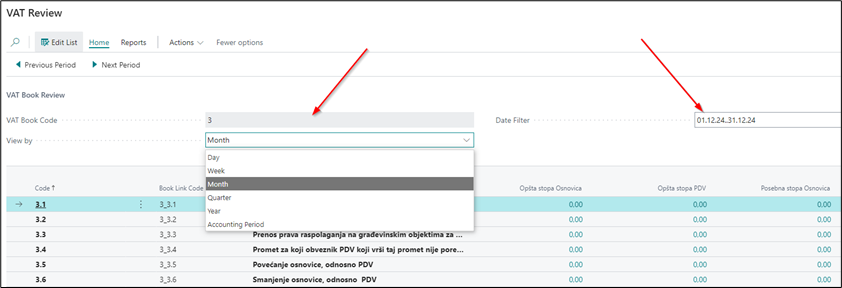
VAT Review
You can easily modify the date filter at any time to match your needs.
VAT Reports
The VAT reports used for Bosnia and Herzegovina are the VAT Book and VAT Return Export to CSV.
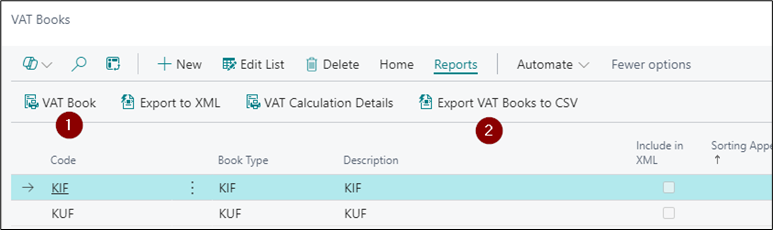
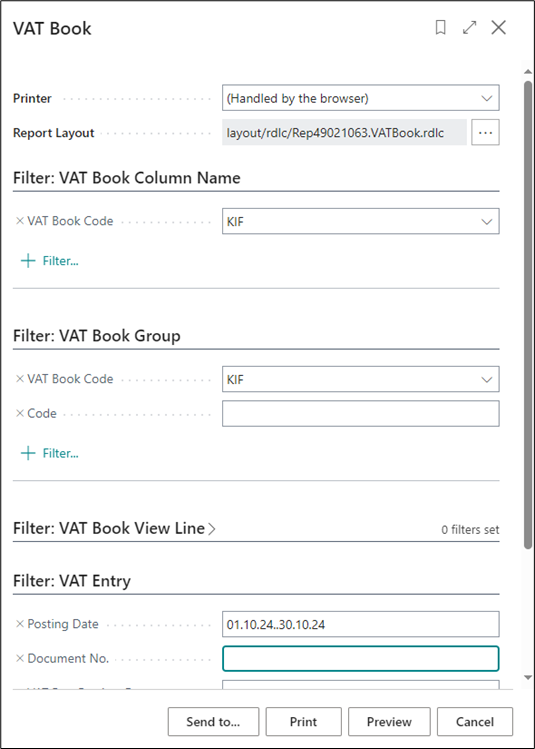
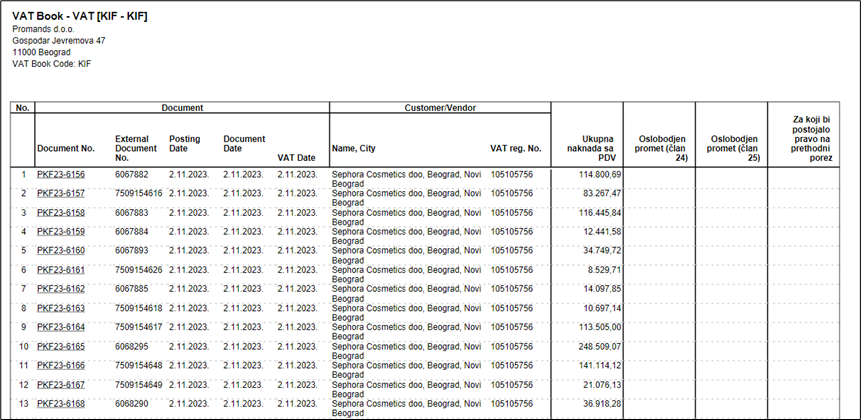
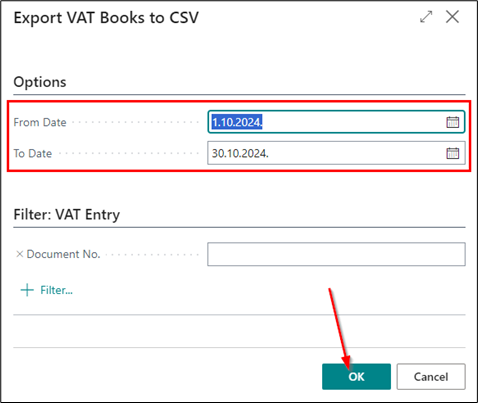
By clicking Export VAT Books to CSV, a page for entering the date filter will open. After clicking OK, the file will be exported and ready for further import into the VAT return submission system.
Fiscalization for Bosnia and Herzegovina
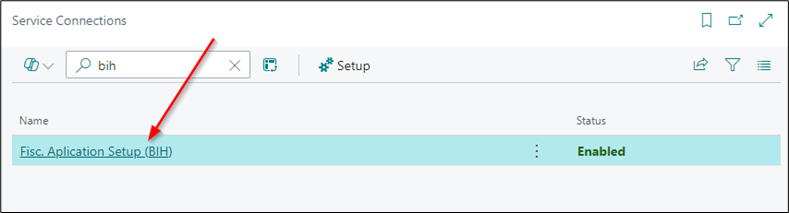
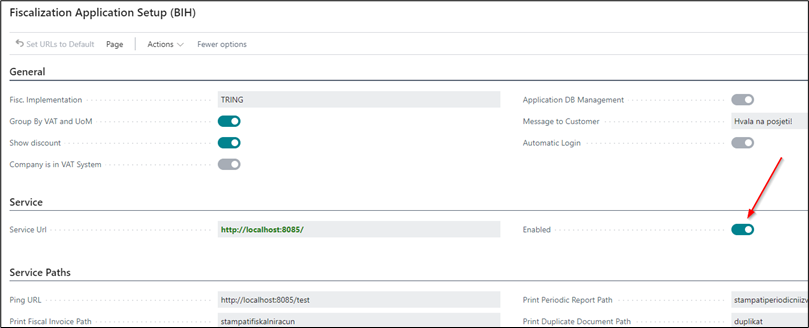
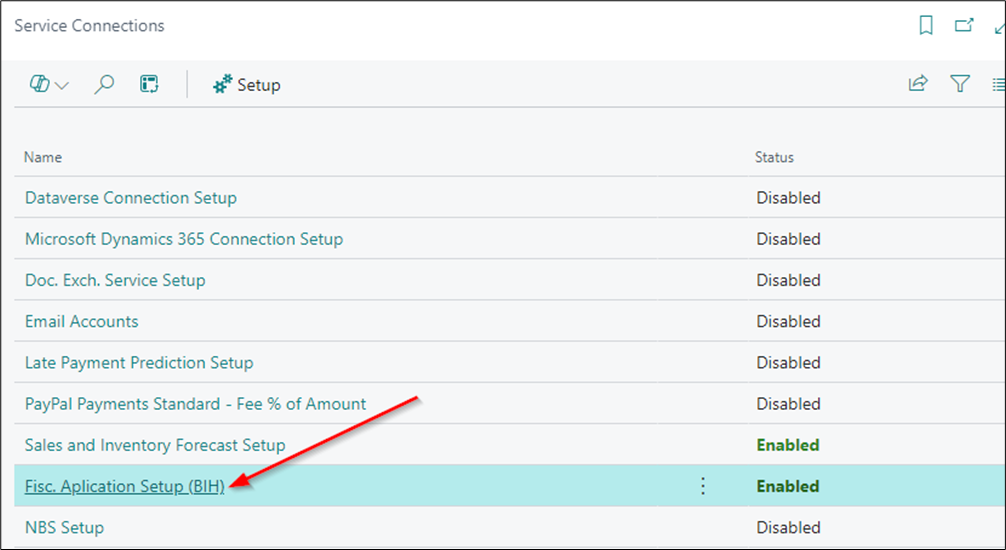
To establish a connection between the fiscalization service and Business Central, you need to search for Service Connections -> Fiscalization Application Setup (BIH).
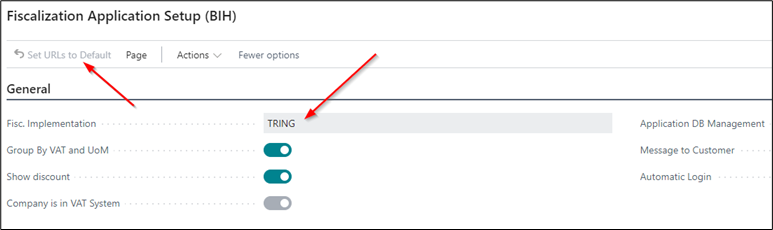
A setup page will appear where you need to select Fiscalization Implementation (TRING) and configure the URL, as shown in the image.
You will get the URLs in the Service tab and the Service Paths tab.
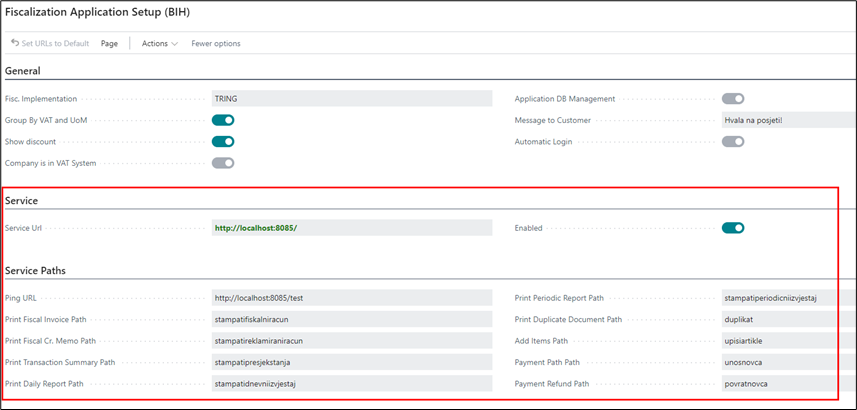
The final step is to click Enable, and the connection will be activated. The remaining options within the setup are explained further in the text.
Printing of the fiscal receipt
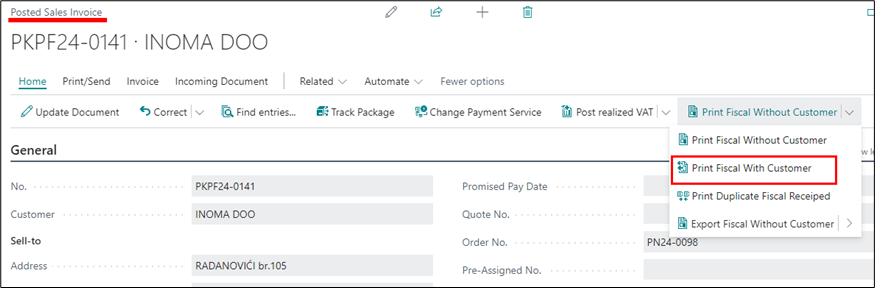
From the Posted Sales Invoices document, initiate the Print Fiscal Receipt with Customer action.
Note: If the invoice is in a foreign currency, it will be sent to fiscalization in the local currency.
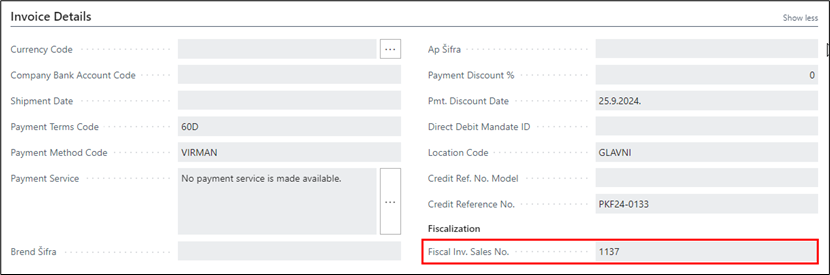
Once the invoice is successfully fiscalized, it will receive a Fiscal Inv. Sales No., which can be seen in the Invoice Details tab.
Print a duplicate fiscal receipt
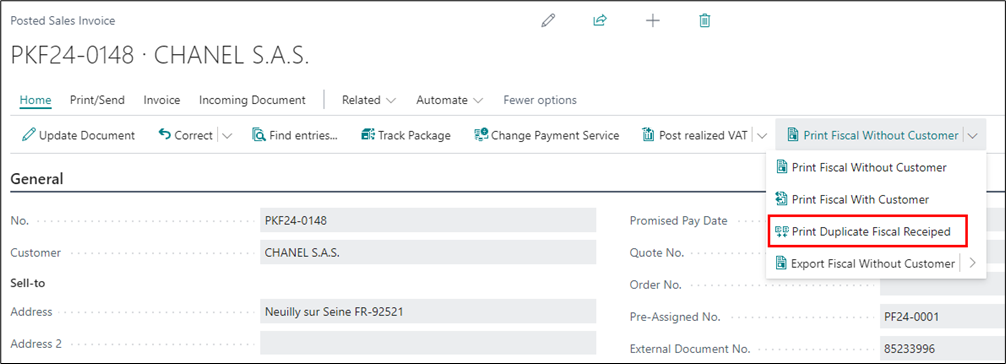
On the fiscal receipt printout, you have the option to select Print Duplicate Fiscal Receipt. This function is initiated from an evidenced sales document. The functionality allows the fiscal receipt to be reprinted from the fiscal printer.
Sales Credit Memo
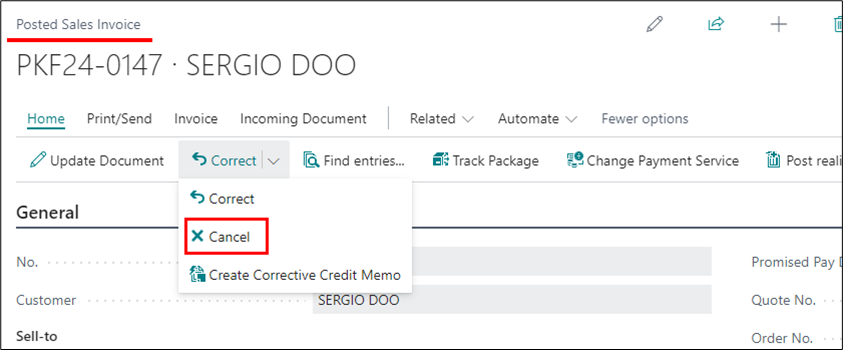
When the credit memo is created through the Cancel function, a correction credit memo is generated. During document copying, the fiscal receipt number from the invoice being claimed will automatically populate the Fiscal Inv. Sales No. field on the posted sales credit memo. Each sales credit memo will display the fiscal receipt number being reversed in the Credit Memo Details tab.
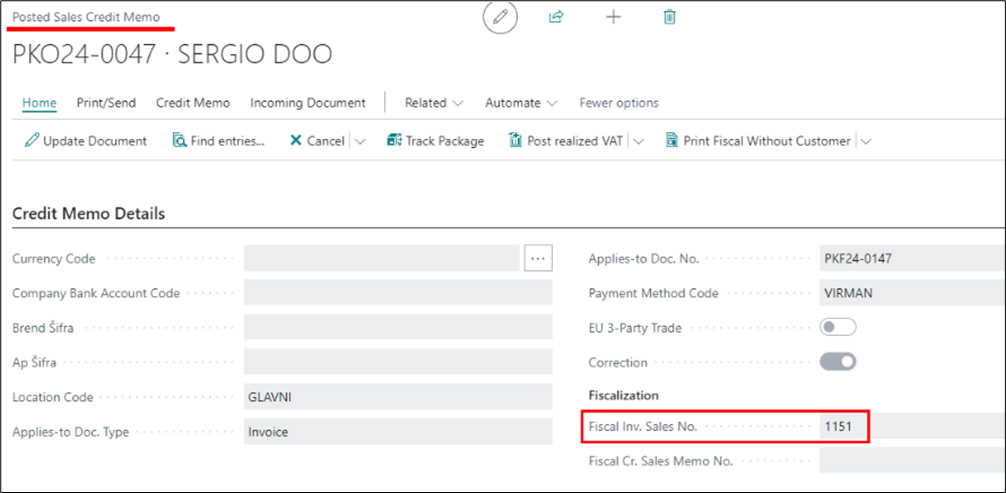
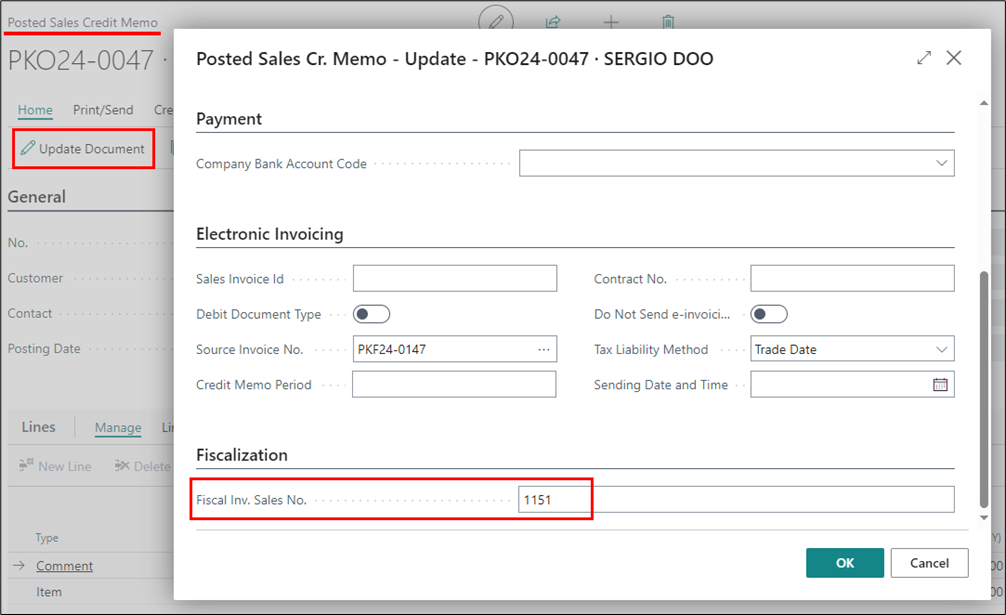
If the fiscal receipt number needs to be added or modified, it can be done by updating the document.
Report Printing
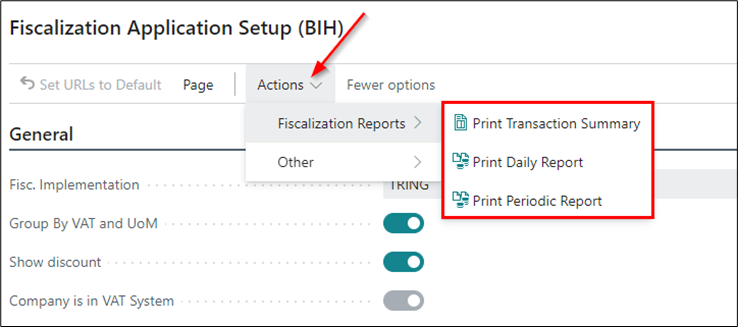
Reports are printed from the settings menu. First, navigate to Service Connections, and then select Fisc. Application Setup (BIH).
Potrebna vam je pomoć?