PHI - Physical Inventory Posting
Physical inventory order
This functionality provides possibility to do physical inventories, besides Physical inventories journal.
Its benefit lies in the fact to have additional option to organize whole process according to rule, one location, one physical inventory order. Counting goes for one order and one location.
Inventories can be counted multiple times for one order/location, for example when item groups need to be assigned to different employees.
The steps go as it follows:
- Physical inventories order creation – for expected quantities are filled in from system information
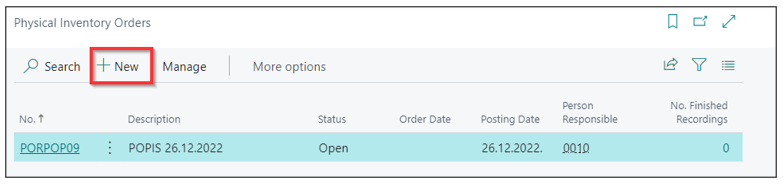
- Calculation inventory creation – from phys. inventory order, one or more
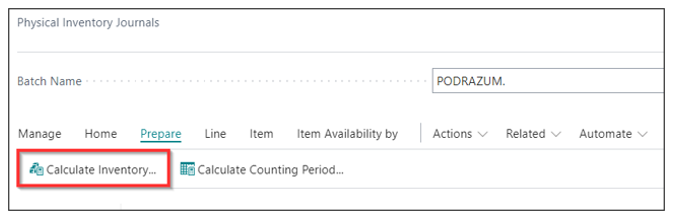
- Register of counted quantity in calculation of inventories – manual entry or importing csv file.
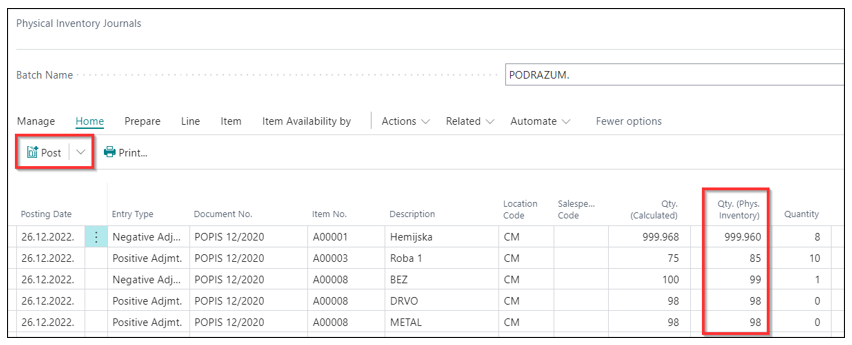
- Physical inventory order posting – at the end of the process of calculating, counting and recording
Setup:
In order to use this functionality, go to Inventory setup, Numbering tab and set fields for Physical inventory orders series no. and Posted inventory no. series no.
Details on physical inventory order creation:
- In the header of this document are information about the way to complete this activity, and in lines are information on items and locations.
Document header:
- No.
- Description
- Location code
- Responsible employee
- Responsible inventory order employee
- General product posting group
- General business posting group
- Order date
- Posting date
- Dimensions
- The next step is to activate Calculate lines option from the ribbon. This option calculates recorded inventories by defined filters.
It is necessary to turn on option „Calculate qty expected" in order for the system to suggest qty on hand. This processing will fill in physical inventory order lines with calculated quantity in column Exp.qty.
The column Use item tracking shows if there is tracking or not. For each line with tracking, information on tracking for calculated qty is displayed through option Line-Item tracking lines – Expected item tracking lines.
Create new recordings
As mentioned, this process is to be done through order and it can be more than one, usually depending on employees no, responsible for this activity.
Inventories counting list is a document for recording physical actual inventories qty found or counted on actual locations. This document is created through option Make new recording. If we don't select/filter, it will count for all the lines from physical inventory order.
To create counting of items from the order, go to Navigate – Order – Recording:
Counting and recording was created for all the lines from the order. Counting shows 0 qtys as we need to enter physical qtys that we found on a certain location. If for one item needs to enter data in more lines, mark the line you want to copy and click Functions – copy line - enter no. of copies and click ok. This will create as many lines with the same data.
On your physical inventory list, you need to fill in with phys. qty and information about serial no. or lot no., if items have tracking codes.
This list can be printed out.
After counting and recording:
Besides manual process of filling out the counted quantities, the lines can be filled in through .txt files. There is a function Export recording lines. Complete the list with recorder quantities and go to option Import recording lines. It should automatically add order lines. For those lines you have counted and recorded items, the column Recorded is going to be checked and you won't be able to import file/lines before you uncheck field.
When this completed, it is necessary to check in option Finished. There is an option Reopen, in case this document has to re-edit.
Physical inventory order posting:
When counting and recording are finished, the system connected and coupled lines from initial order with lines from the physical recording list. It is shown in order lines. On the initial order document, it is visible that recording is finished and in lines counted quantities and no. of counted (recorded) lines.
If the process is truly completed, change the status to Finished. The system will automatically calculate surpluses and shortages according to serial nos or lot nos.
You can check tracking lines for each lines separately. This order can be printed. When all done, it is needed to post the order. The result is Posted physical inventory order and its entries.
Physical inventories order entries:
In this example, we have one item with lot no. that has a surplus and shortage in other lot no. It will post positive and negative differences. Lots do have different unit price as well.
| Item no. | Lot no. | Quantity exp. | Quantity recorded | Direct unit price | Unit price |
|---|---|---|---|---|---|
| A00029 | 12345 | 5 | 3 | 1000 | 925 |
| A00029 | 101112 | 3 | 5 | 800 | 925 |
The first line should be posted as negative correction, the second line as a positive correction.
The positive correction post with average Unit price, negative corrected are valued according to item costing method - items actual cost.
Examples on physical inventory orders:
Let's assume our item costing method is FIFO and provide some data on items in order to show value entries resulted after posting surplus or shortage of inventory with two different lots. Another assumption is that Automatic cost adjustment is set to "always". For this reason, average unit price will adjust to actual cost of item according to Cost method, each time shortage (neg. correction) is posted.
Example 1 - Surplus, one lot no.
| Item ledger entry type | Item ledger qty. | Cost amount (actual) | Cost per Unit | Cost posted to G/L |
|---|---|---|---|---|
| Pos. adjustment | +1 | +925 | +925 | +925 |
Example 2 - Shortage, 1 piece, two lot nos.
Information on example: Quantity before ph. Inv.:
- 1st purchase, lot.1, 2 pcs, Cost: 1000
- 2nd purchase lot 2: 5 pcs, Cost: 800
Value entries:
| Item ledger entry type | Item ledger qty. | Cost amount (actual) | Cost per Unit | Cost posted to G/L | Entry no. |
|---|---|---|---|---|---|
| Neg. adjustment | -1 | -925 | -925 | -925 | 1 |
| Neg. adjustment | 0 | -75 | -75 | -75 | 2 |
Posting will cause two value entries, one with item ledger entry -1 and the second entry that adds/subtracts amount in order to set it equal to Actual item cost (in this case 1000, from the first purchase).
Example 2 – shortage of 3 items, two lot nos.
Quantity before physical inventory order:
- 1st purchase lot.1, 1 pcs, Cost per unit 1000
- 2nd purchase lot 2, 5 pcs, Cost per unit 800
Value entries:
| Item ledger entry type | Item ledger qty. | Cost amount (actual) | Cost per Unit | Cost posted to G/L | Entry no. |
|---|---|---|---|---|---|
| Neg. adjustment | -1 | -925 | -925 | -925 | 1 |
| Neg. adjustment | 0 | -75 | -75 | -75 | 2 |
| Neg. adjustment | -2 | -1850 | -925 | -1850 | 3 |
| Neg. adjustment | 0 | +250 | +125 | +250 | 4 |
In this scenario, two additional value entries occur to equalize the posting to the value of item actual cost (1000+800).
Example 3, shortage, serial no.
Information:
- Purchase 1, serial no 123, 1000 value
- Purchase 2, Serial no 234, 800 value
Value entries:
Here we can have a situation of item shortage. As explained, this shortage values with actual item cost, the value entries would show:
| Item ledger entry type | Item ledger qty. | Cost amount (actual) | Cost per Unit | Cost posted to G/L | Entry no. |
|---|---|---|---|---|---|
| Neg. adjustment | -1 | -900 | -900 | -900 | 1 |
| Neg. adjustment | 0 | -100 | -100 | -100 | 2 |
Items reclassification
In cases there are similar items, according to accounting rules, and one is a surplus, other shortage, it is allowed to reclassify one to another.
For that matter, you can use the Assembly order. If Item 1 has a surplus and Item 2 shortage, you can "reclassify" the first item into the second one.
Choose Item 1 in the Assembly order general tab and turn on Reclassification button.
Post the assembly order. After that, re-calculate items quantity in order to get visible changes after reclassification through assembly order.
It will be necessary to re-open recording and physical inventory order status afterwards.
Items reclassification journals
Item reclassification journal can be used for item characteristics changes – variant, dimensions, guarantee expiry date, items tracking codes.
In order to use this functionality, here are the steps to follow:
-
Find this journal in Quick search engine - Items reclassification journals
-
Define field in Journal lines
- Posting date
- Item no.
- Location code/bin code: old codes
- New location code/new bin code: type new code
- Variant code, dimension code: old variant, dimension code
- New variant column, new dimension code column: type new variant or new dimension code
- Quantity: enter quantity for reclassification
- Applies to entry: use this field when you want to connect original entry with reclassification entry
-
If you want to reclassify items with tracking, tracking information can be changed within Navigate/Lines/Item tracking lines. On item reclassification lines add information about old and new item tracking serial nos/lot nos/date.
-
Post reclassification journal and check items ledger entries.
Physical inventory posting
Physical inventories calculation and posting are done throughout Physical inventory journal. The whole process goes as described below.
Physical inventories calculation:
-
This processing activates through function Actions – Functions – Calculate inventory. The system automatically counts all inventories on hand based on defined processing parameters and enters data about inventories count at physical inventory journal lines.
-
New window opens, to enter data:
- Posting date
- Document no.
- Items not on inventory
- Include items without transactions: option to select "yes"
- By dimensions
Filter: Item – possible selection by item/items
Filter by:
- Locations filter
- Bin filter
-
Click "ok", and processing will count remaining inventories, according to pre-defined criteria.
-
Next step is to print Physical inventory list:
- There is a possibility to print out with or without information on calculated inventories
- There is an option to Show serial/lot number if desired
Physical inventories counting:
Next step is to physically count inventories and fill in Physical inventories list by members of physical inventories commission.
- Data from Physical inventories list are then being entered on Physical inventories journal lines, in field Quantity(physical inventories). After that, the system automatically calculates and shows differences in Quantity column and changes Entry type from initial Positive correction to Negative correction, if the counted quantity is bigger than calculated.
- Depending on Entry type, next is to choose appropriate General business posting group and to post this journal lines:
- For Positive corrections (on lines that have registered surplus and the lines without difference between quantity calculated through system processing and physical inventories counting quantity), enter general business posting group for SURPLUS.
- For Negative corrections, on lines with registered shortage of inventories – enter general business posting group SHORTAGE.
NOTE: According to VAT regulation, it is necessary to post VAT inventories shortage. That is to be done through Posting journal as a separate activity to physical inventory posting.
Physical inventory by lots/serial nos./variants:
Physical inventory can hold items with tracking codes or variants. For these items, on Physical inventory journal lines, after Inventory calculation, there will be fields filled with Lot/Serial nos. information, and for items with variants there is a field for variant code.
-
If after counting inventories turns out there is a serial number that was not on recorded inventories, that serial number has to reclassify.
In that scenario, go and process one more time Inventories calculation with filter of that item and Serial no./Lot no. There will be new journal line with 0 quantity and serial/lot no. Enter number in Quantity field and post journal line.
-
If after counting certain item quantity with tracking or variant needs to reclassify due to exact physical inventories count, you can use functionality for Items reclassification.
Potrebna vam je pomoć?