Sending Invoice Outstanding Position
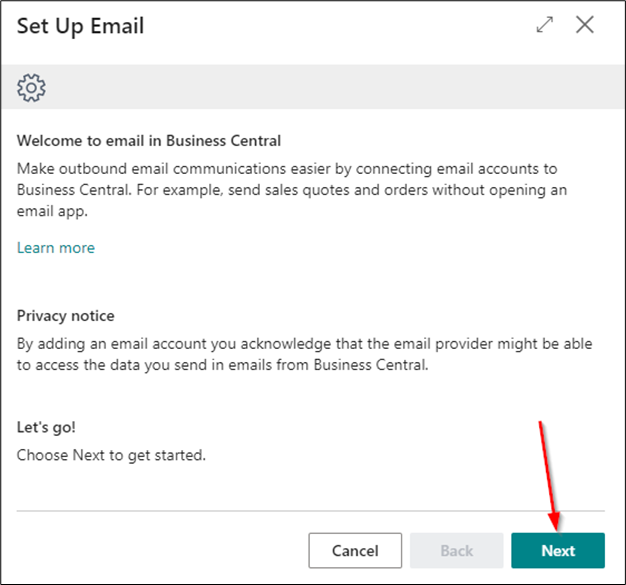
For the purpose of sending Invoice Outstanding Position from BC, the following setup is required. Enter Set Up Email in the search bar.
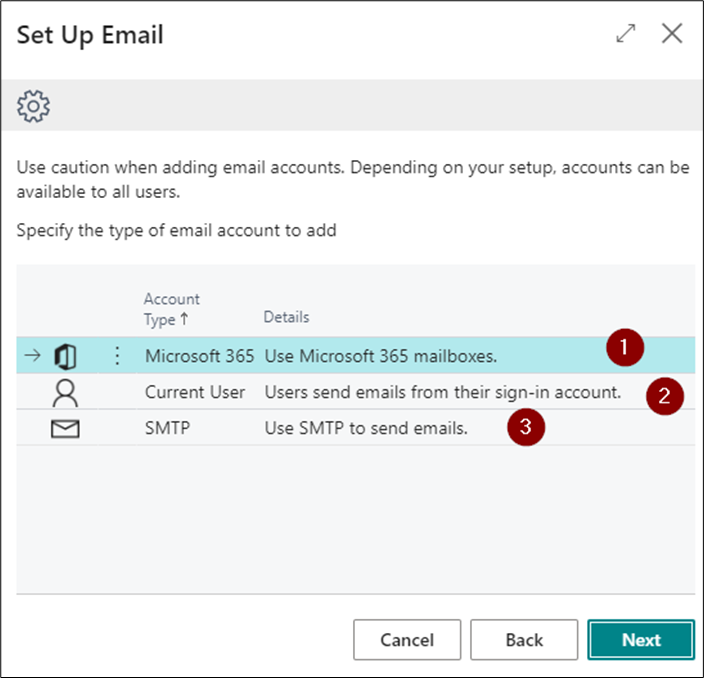
OPTION 1 - Microsoft 365: A shared mailbox from which emails are sent. This setup is intended for users with a Microsoft license.
OPTION 2 - Current User: Emails are sent from the user currently logged into BC. This setup is also intended for users with a Microsoft license.
OPTION 3 - SMTP Server: Used to send emails via an external mail server.
Note: For sending a large number of emails, it is recommended to use the SMTP option. The parameters for the SMTP server can be obtained from your IT administrators.
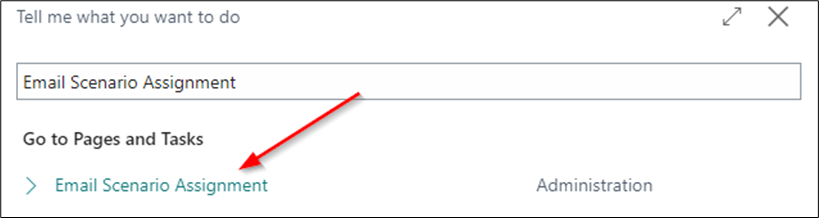
Enter Email Scenario Assignment in the search bar to assign a scenario for sending IOP using this account.
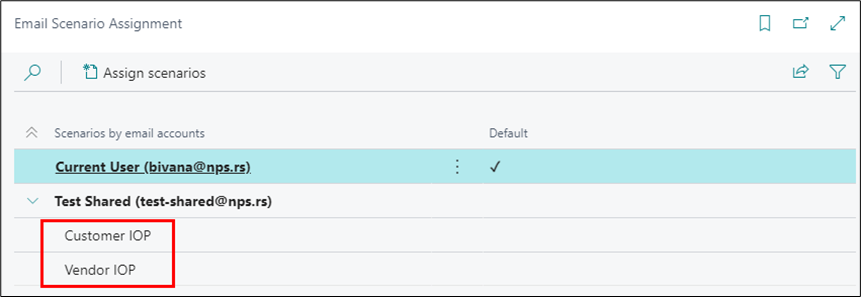
If we want to send Invoice Outstanding Positions from an account that is not the default, it is necessary to assign a scenario. This refers to the shared account.

By selecting Customer IOP and Vendor IOP, you enable sending Invoice Outstanding Positions through this email account, which is not the default.
Selecting the report for sending (sales and procurement)
Enter Report Selection – Sales in the search bar. In the usage dropdown, select Customer IOP.
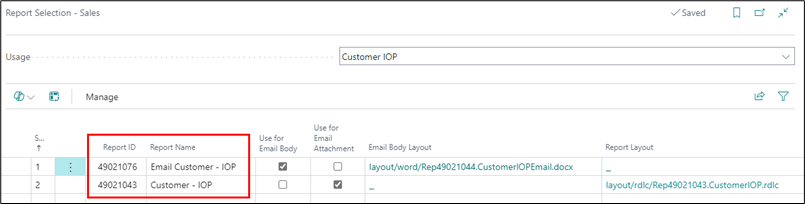
The same applies for procurement; select Vendor IOP.
Note: If needed, the email text can be changed via the Word Layout.
Settings on the customer/vendor card
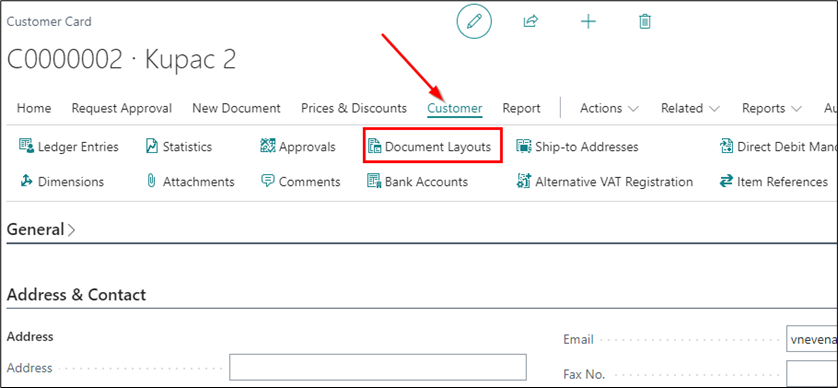
You need to go to any customer/vendor card to assign the Document Layout, which includes the Invoice Outstanding Positions for sending via email. This does not need to be done on every customer card; it is only necessary to configure it once on one card.
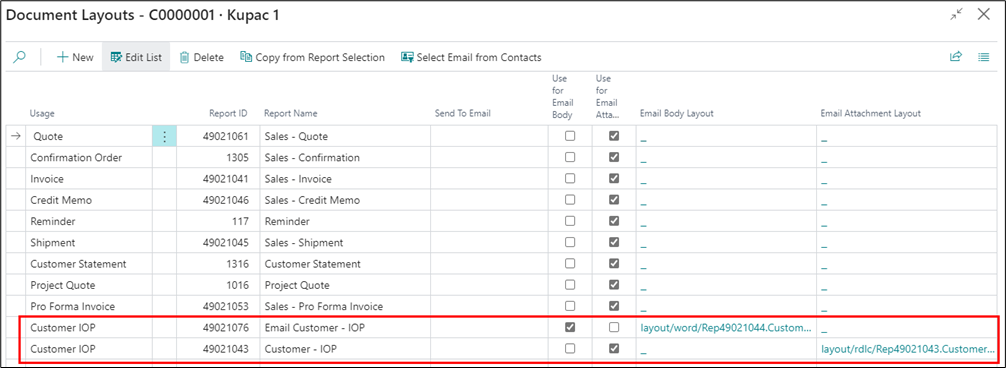
You will receive a list of reports for sales, and it is necessary to add the path to the email attachment (Invoice Outstanding Position) in the Email Attachment Layout field.
Email Body Layout – It can be changed to include any desired text. You can even set a specific text for a particular customer, so that only they will receive the customized text in their email. The same applies to vendors; you will receive the document layout for procurement. It is also possible to modify the Email Body Layout, and you will need to configure the Email Attachment Layout as well.
Email on the Customer/Vendor Card
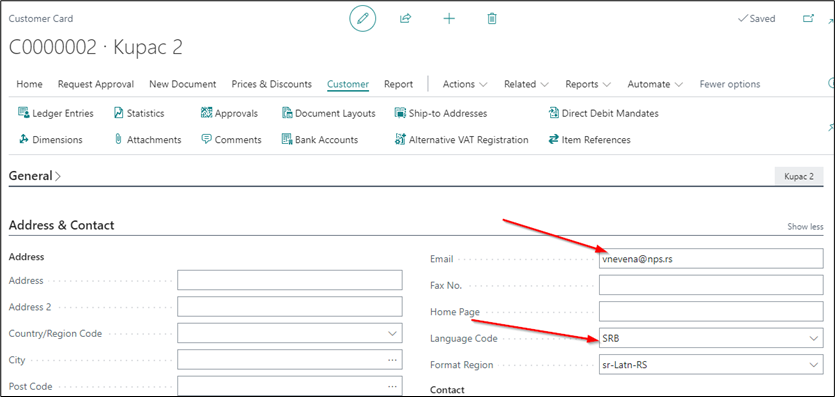
For each customer and vendor, it is necessary to enter the email address and language code in the Address and Contacts tab. If something is being sent to a foreign customer or vendor, it will be in English if the language code ENG is filled in on their card.
Sending Emails
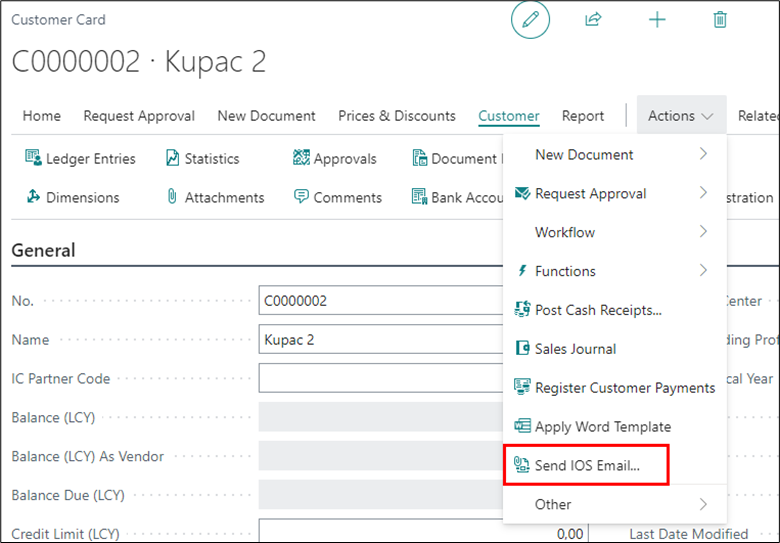
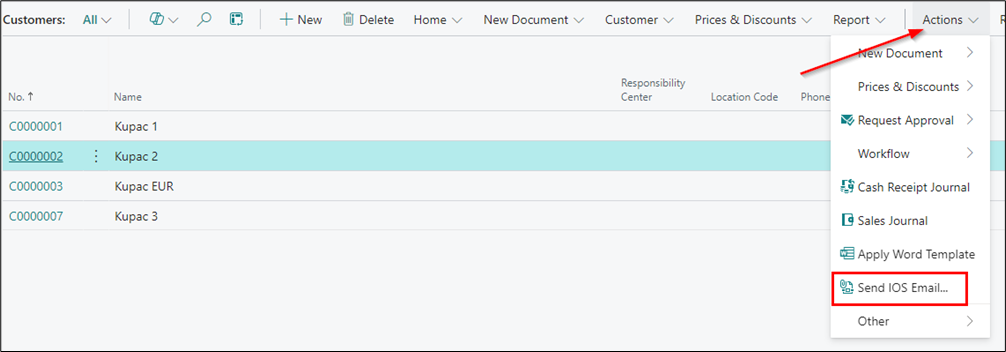
Emails can be sent in bulk from the customer list using the Actions -> Send Invoice Outstanding Position Emails to Customers function, or individually from the customer card. The same applies to vendors.
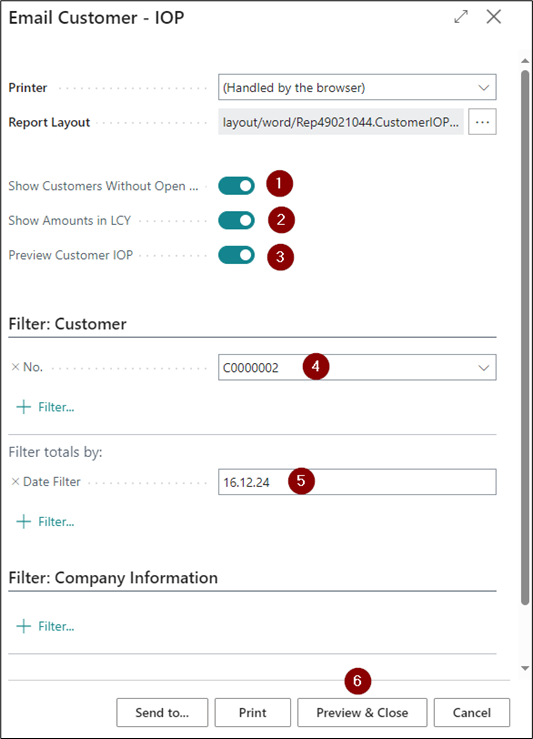
Customer Email – IOP:
- Show Customers Without Open Items: Displays customers who have no open items, with a balance of 0.00.
- Show Amounts in LCY: Displays amounts in the local currency.
- View Customer IOS: Allows previewing without sending.
- No.: Enables filtering by customer number.
- Date Filter: This field is mandatory, and the end date for viewing open items must be entered. BC automatically sets the start date, so only the end date needs to be specified.
- Preview & Close: Allows previewing if the View Customer IOS checkbox is selected; otherwise, the IOP will be sent to the customer's configured email address.
Potrebna vam je pomoć?