Reverse Schedule
When a payment schedule is activated, the system creates the initial G/L entries by recording the short-term and long-term liabilities. These initial liabilities are gradually reduced as individual installment payments are posted.
A payment schedule with the status Active can be reversed. However, if individual installment payments have already been posted for the schedule, they must be reversed first. The active payment schedule can be reversed only after all posted installment payments have been reversed.
The reversal must therefore be performed in the following order:
- First, reverse all posted installment payments (see Reversing Accruals).
- Then reverse the initial posting created when the payment schedule was activated, by selecting the Reverse action in the payment schedule header.
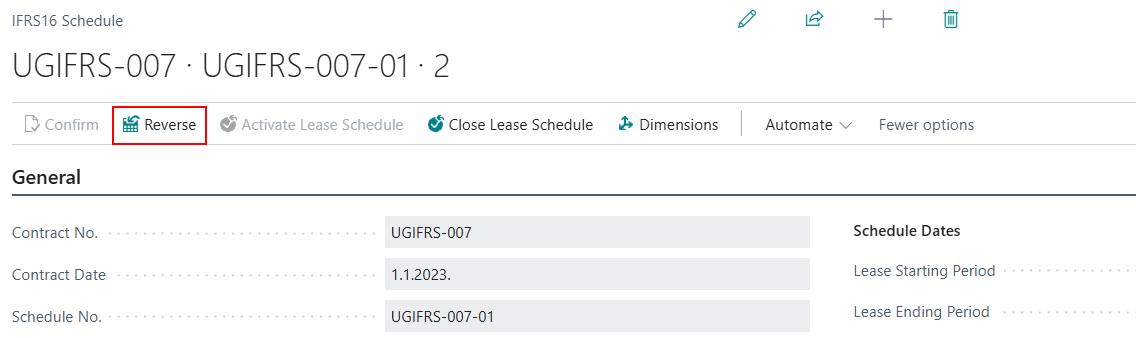
After the Reverse action is selected, the payment schedule status changes to Reversed in the contract lines, while the previous payment schedule status changes from Old back to Active.
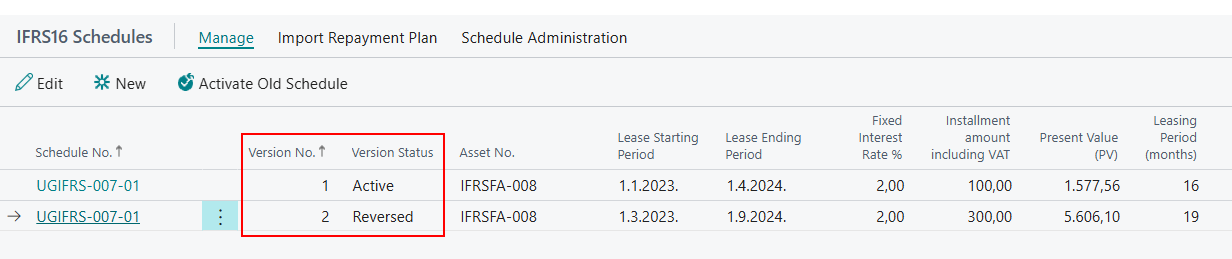
All subsequent steps and postings are then performed from the active payment schedule. You can continue posting installments or, if necessary, select one of the actions for changing the contract terms, such as Create New Schedule Version or Create Lease Term Extension.
If you select the Reverse action before reversing the posted installment payments, the system displays the following message: A lease schedule with posted monthly payments cannot be reversed. All posted payments must be reversed before the payment schedule can be reversed.
Need more help?