Payment Schedule
A new payment schedule is created by selecting New in the contract lines. The payment schedule consists of a header and lines. The schedule lines represent installments generated after all required information has been entered in the header.
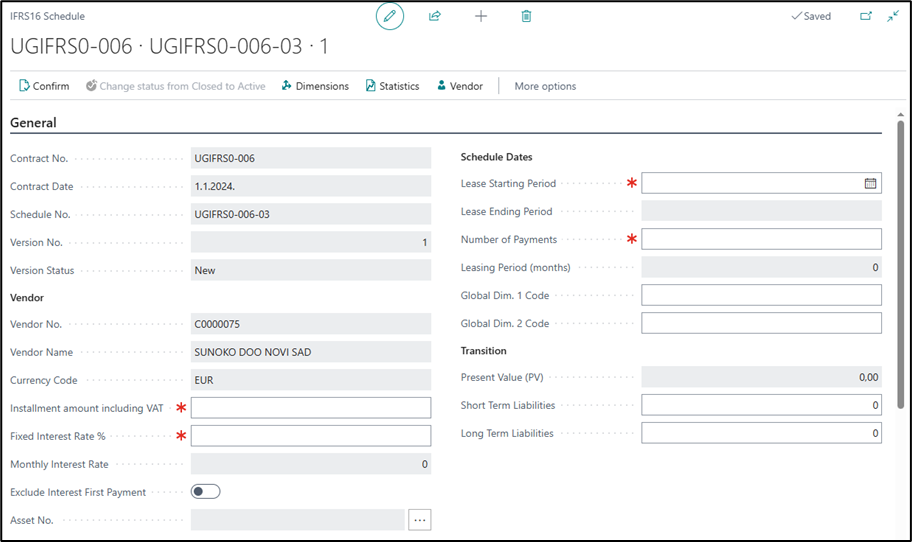
The following header fields cannot be edited — their values are automatically transferred from the contract: Contract No., Contract Date, Payment Schedule No., Version No., Version Status, Vendor No., Vendor Name, and Currency Code.
Schedule Header
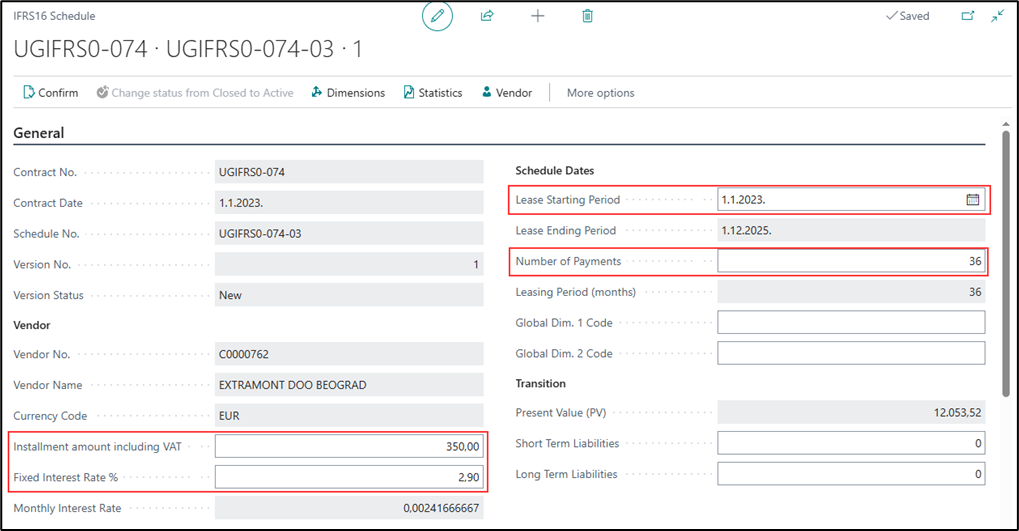
Fields marked with an asterisk are mandatory: Installment Amount including VAT, Fixed Interest Rate %, Lease Starting Period, Depreciation Starting Date, and Number of Payments. By entering the number of payments, the system automatically calculates and fills in the Lease Ending Period.
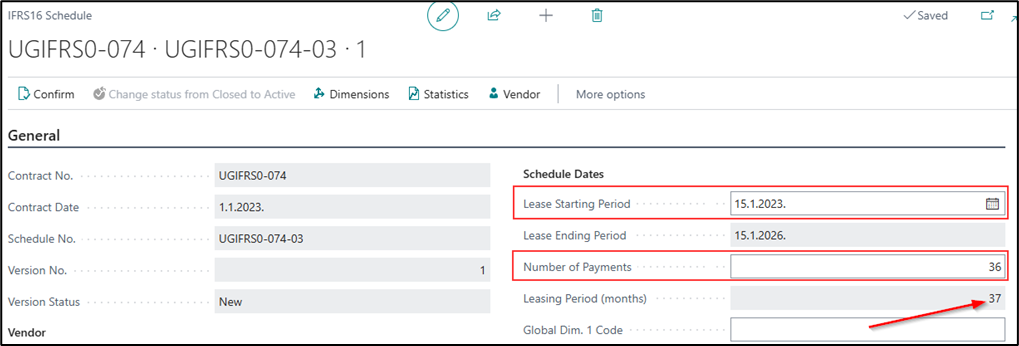
The Lease Starting Date of the schedule can be in the middle or at the end of the month. In this case, even if the contract has, for example, 36 installments, the schedule will have 37 periods, because the first and last installments are calculated proportionally and together make up one full installment.
Schedule Lines
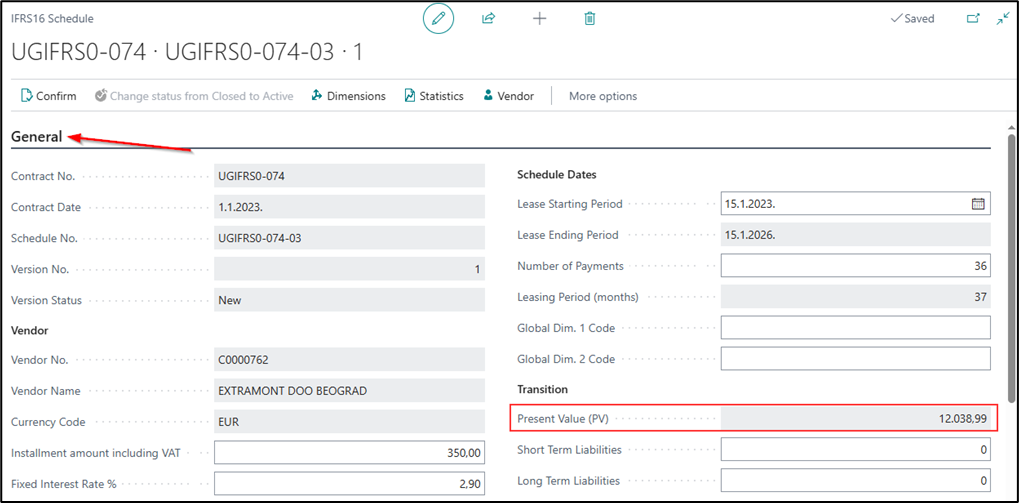
After filling in the required fields (Installment Amount including VAT, Fixed Interest Rate, Lease Starting Period, and Number of Payments), the system automatically creates the schedule lines. The General tab displays the Present Value (PV).
The schedule lines display: line number, period start date and period end date, principal amount, interest amount, monthly payment, and the closing balance. On line 1 of the schedule, in addition to the calculated values, the present value is also displayed — this is the value of the fixed asset.
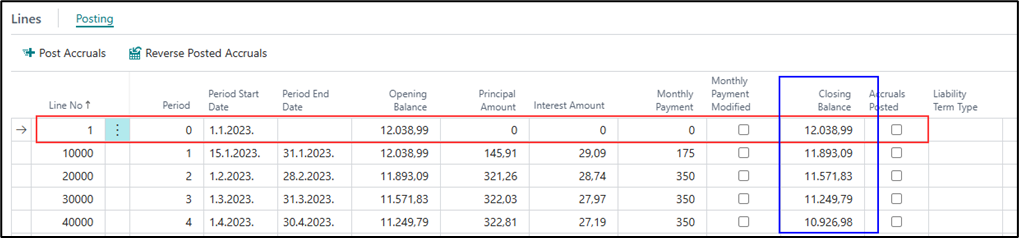
Two additional line fields are populated automatically:
- Posted Calculation – Selected automatically after the corresponding period has been posted (paid). As monthly installments are paid, the field is selected consecutively on each posted line, providing a clear overview of the periods already paid.
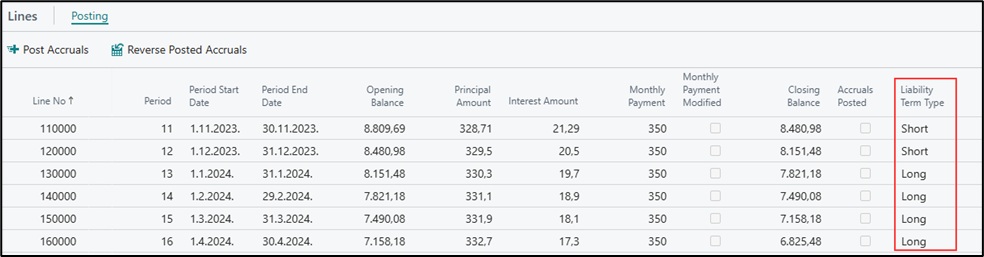
- Liability Maturity Type – Populated automatically when the payment schedule is initially posted.
Modified Monthly Payment
The contract may include rent-free or reduced installments, most commonly for specific periods during the contract term. For example, the contract may stipulate that no installments are payable in April and September, or that the lessee pays EUR 200 for those periods instead of the regular installment of EUR 400.
After you enter all the required information in the payment schedule header, the system automatically creates the schedule lines. On the relevant line for a period with a rent-free or reduced installment, manually enter 0 (for rent-free) or the reduced amount in the Monthly Payment field. Do this for every installment defined as modified in the contract. After the amount is entered, the system automatically recalculates the payment schedule.
When you change a line, the Monthly Payment Modified field is automatically selected on that line — for rent-free installments the Monthly Payment shows 0, and for reduced installments it shows the reduced amount.
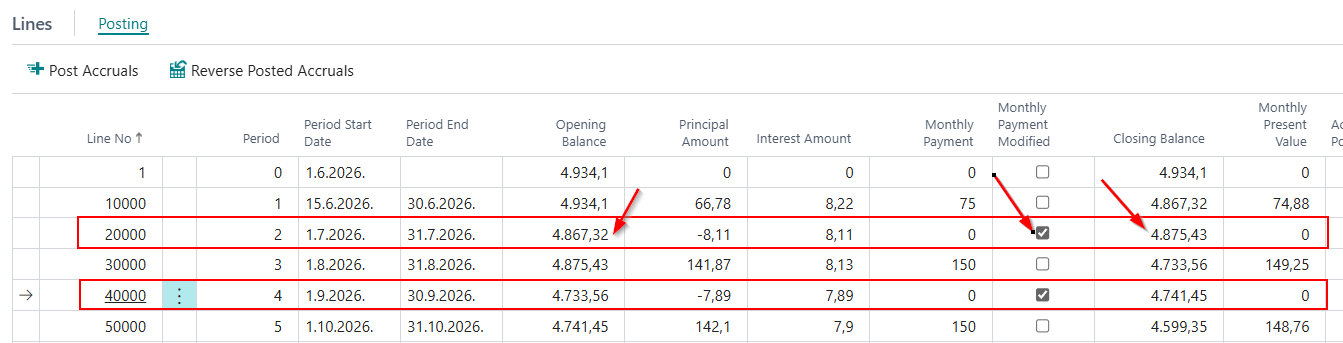
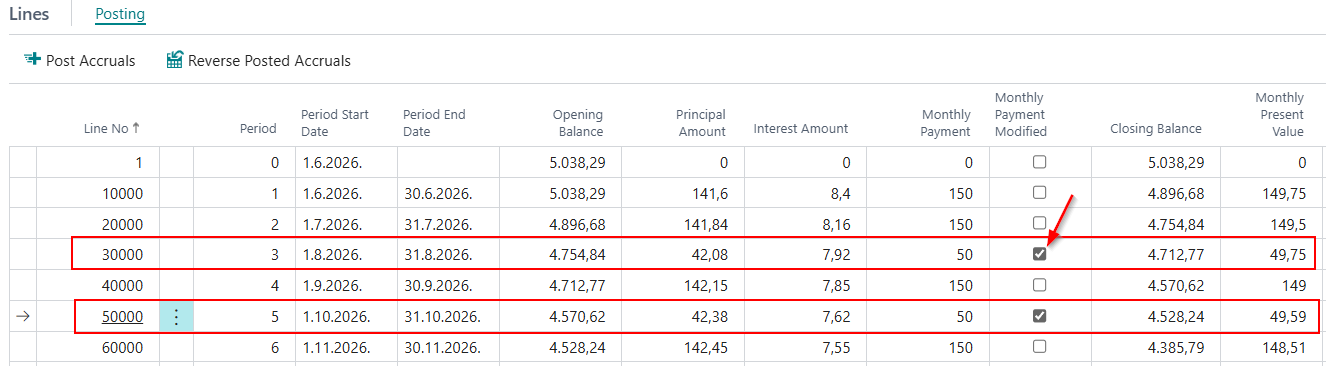
To restore the original value in the Monthly Payment field, clear the check mark in the Monthly Payment Modified field. The system automatically restores the monthly installment amount that applied before the manual change.
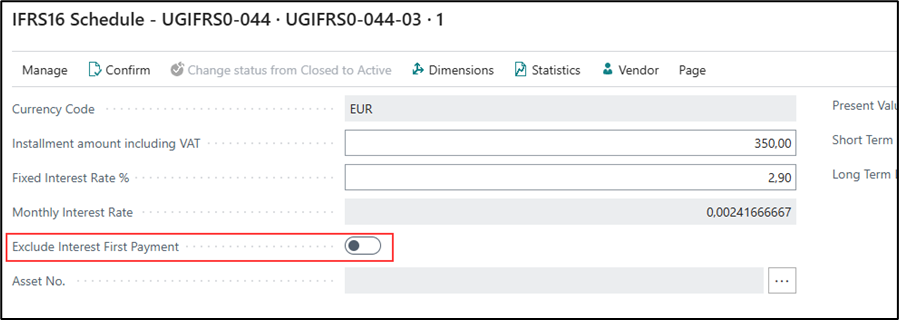
Exclude Interest First Payment
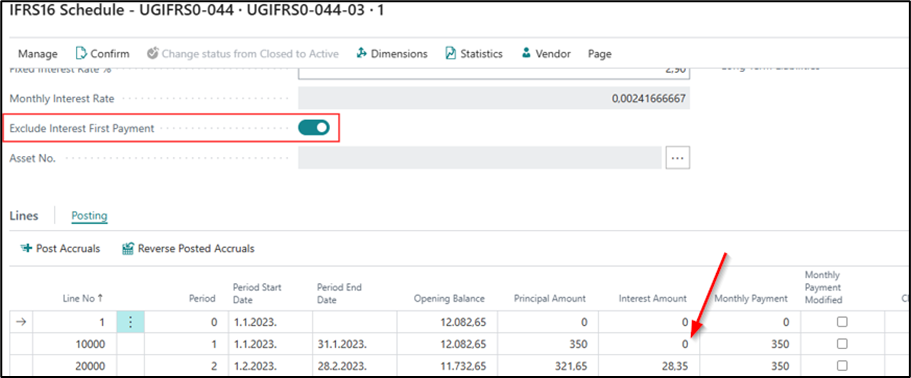
Exclude Interest First Payment is an option located on the General tab within the schedule. When enabled, interest is not calculated or displayed in the first installment during the schedule calculation. This is useful when the schedule requires the first installment to include only the principal amount without any interest.
Creating a Fixed Asset from the Schedule
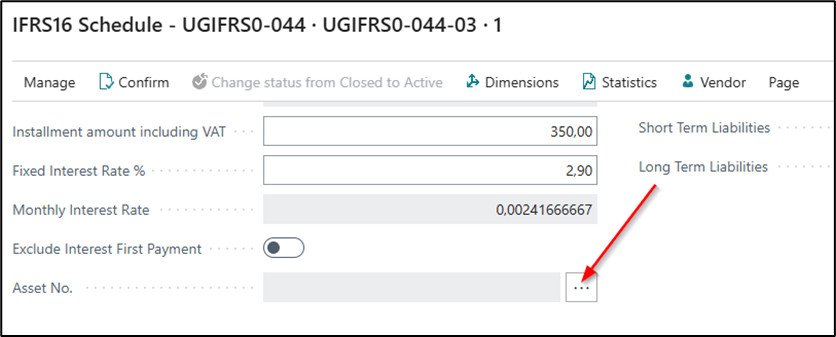
After entering all the required data, create the fixed asset directly from the General tab of the schedule, by clicking the three dots next to the Fixed Asset No. field.
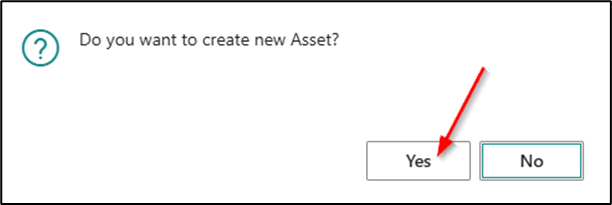
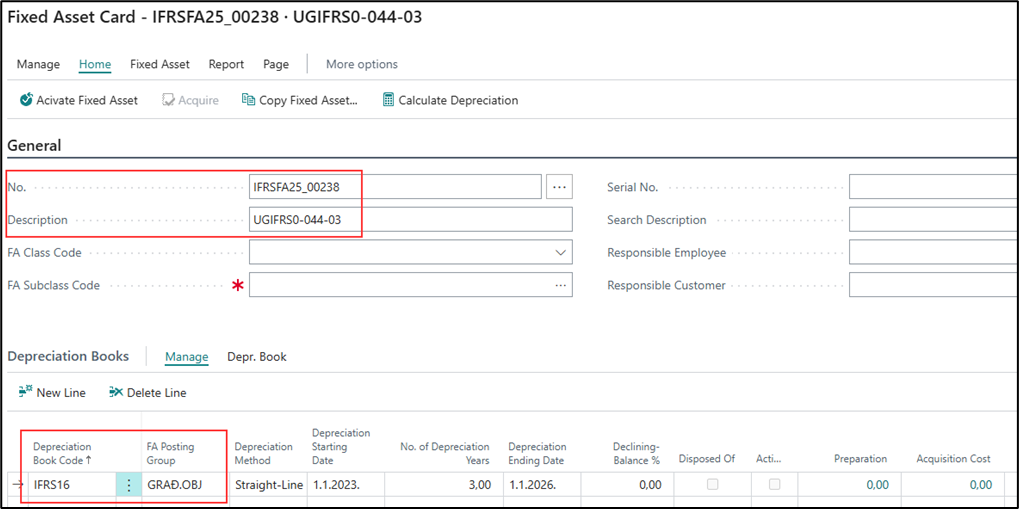
The fixed asset is created according to the number series defined on the IFRS16 Setup page, along with the Depreciation Book Code and the FA Posting Group, which are also configured on the same page. The acquisition cost is not displayed on the fixed asset until the schedule is confirmed.
The depreciation start date is automatically copied from the Depreciation Starting Date field in the payment schedule header. The depreciation ending date is determined based on the Lease Ending Period defined in the payment schedule. Based on these two dates, the system automatically calculates the number of depreciation years.
Confirming Schedule
Once you have verified that the schedule amount matches the plan provided by the leasing vendor, confirm the schedule using the Confirm function.
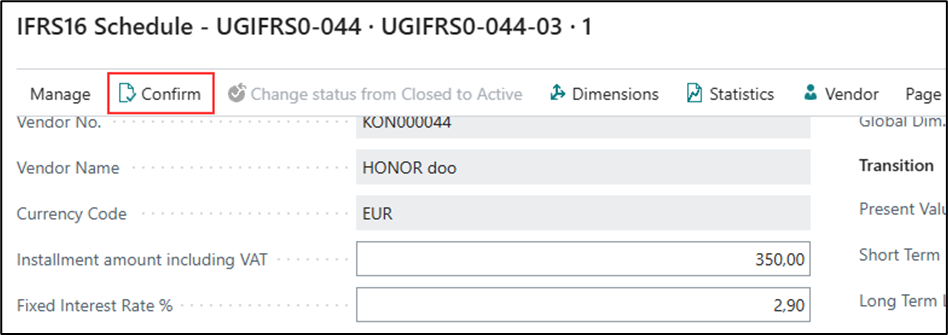
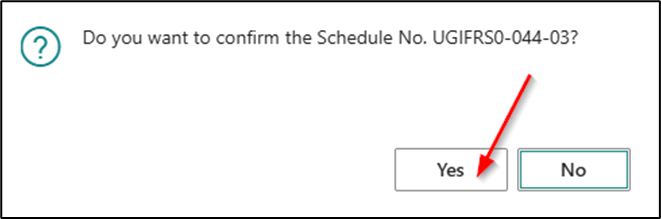
After confirming the schedule:
- The contract status changes from Pre-Contract to Active.
- The schedule version status changes from New to Active.
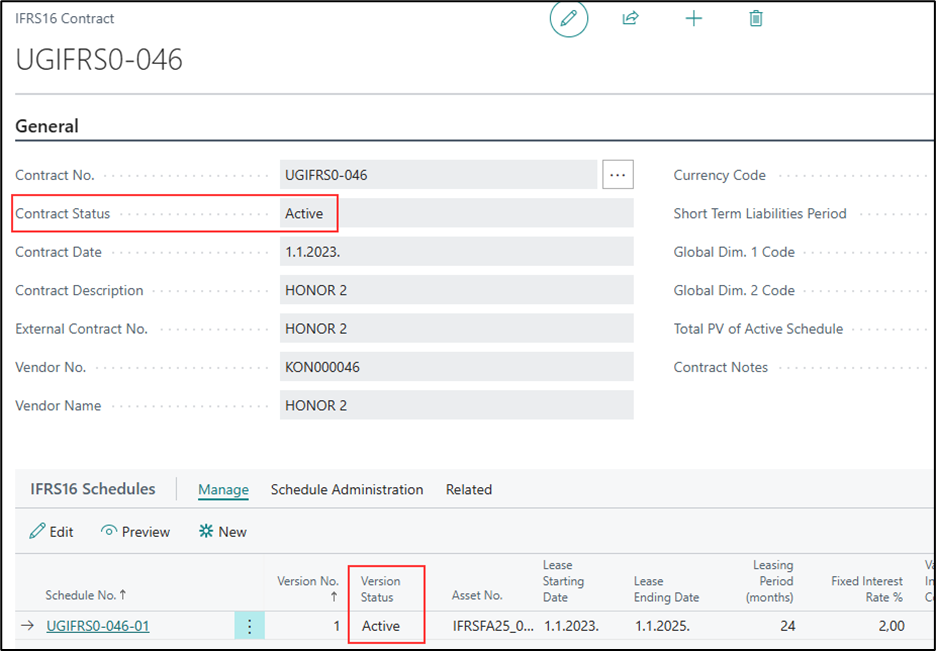
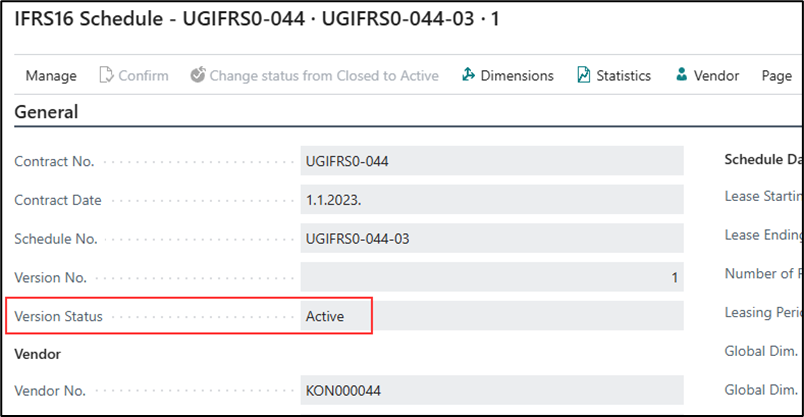
In addition:
- All fields on the schedule are locked (they cannot be changed).
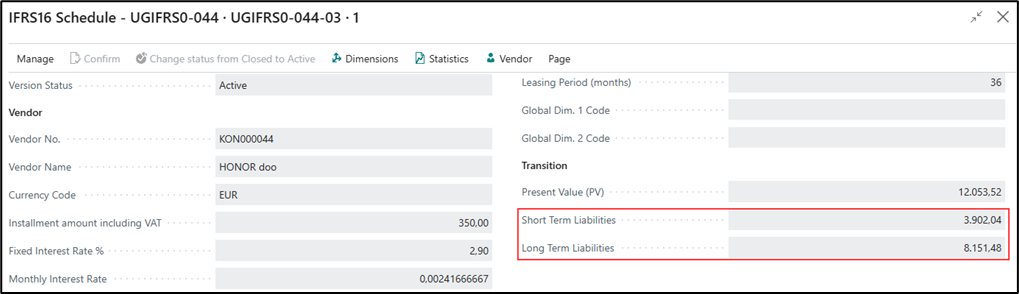
- The General tab of the schedule displays the short-term and long-term liabilities.
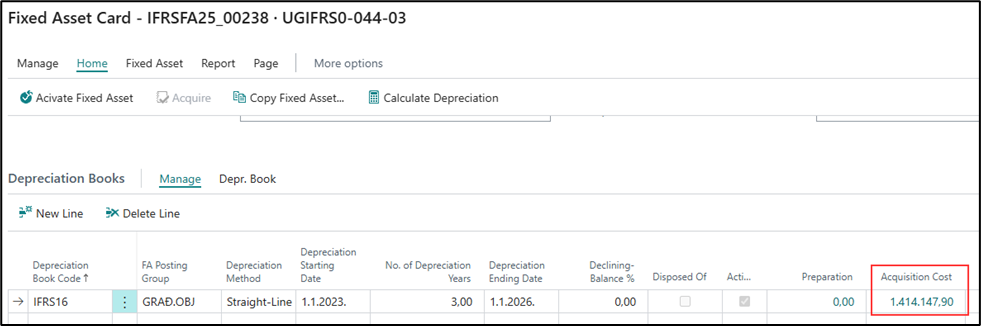
- The acquisition cost of the fixed asset is automatically recorded on the fixed asset.
- The Liability Term Type field on the schedule lines is filled in with the values Short-term and Long-term.
- The Accruals Posted checkbox is marked on the schedule lines.

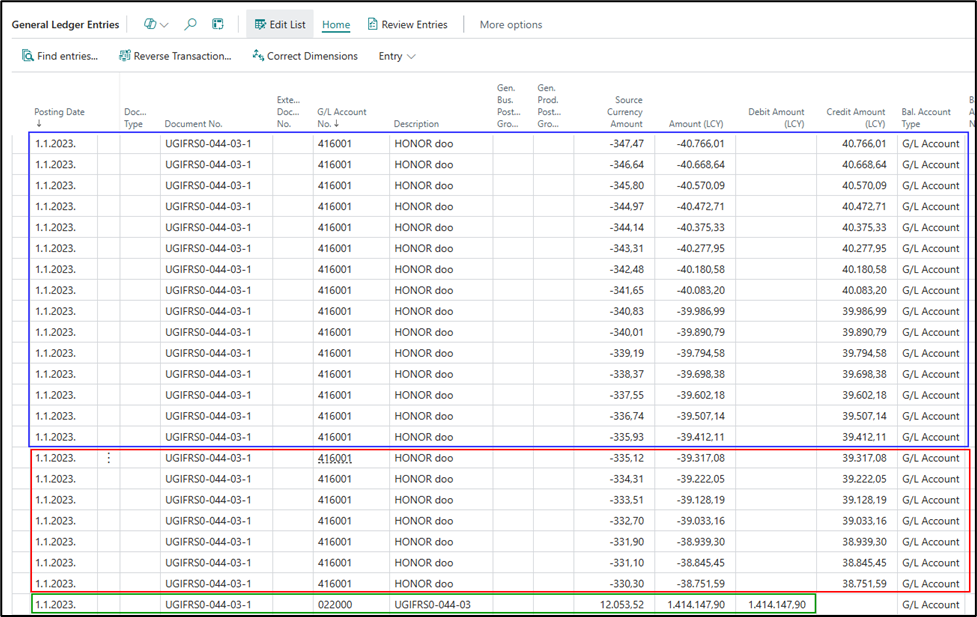
General Ledger entries after confirming the schedule — After the payment schedule is confirmed, the system automatically posts the acquisition cost of the fixed asset, as well as the short-term and long-term liabilities.
Need more help?