Contract Term Changes
During the contract term, changes may occur that affect the calculation of the lease liability — such as changes to the installment amount, interest rate, or contract duration. In such cases, the payment schedule must be recalculated and a new version of the payment schedule created. This section explains how to record these changes in Business Central.
Create New Schedule Version
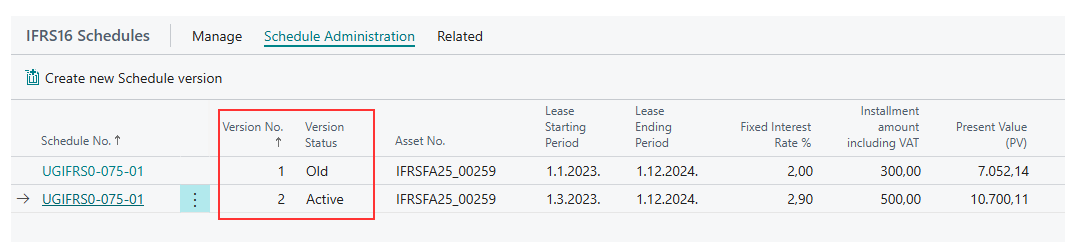
If the contract terms, such as the price or interest rate, need to be changed, select the Create New Schedule Version action on the existing contract. This action creates a new version of the selected payment schedule, while the previous version is retained as a historical record.
You will be prompted: Do you want to deactivate schedule UGIFRS0… version 1 and create a new schedule with version 2?
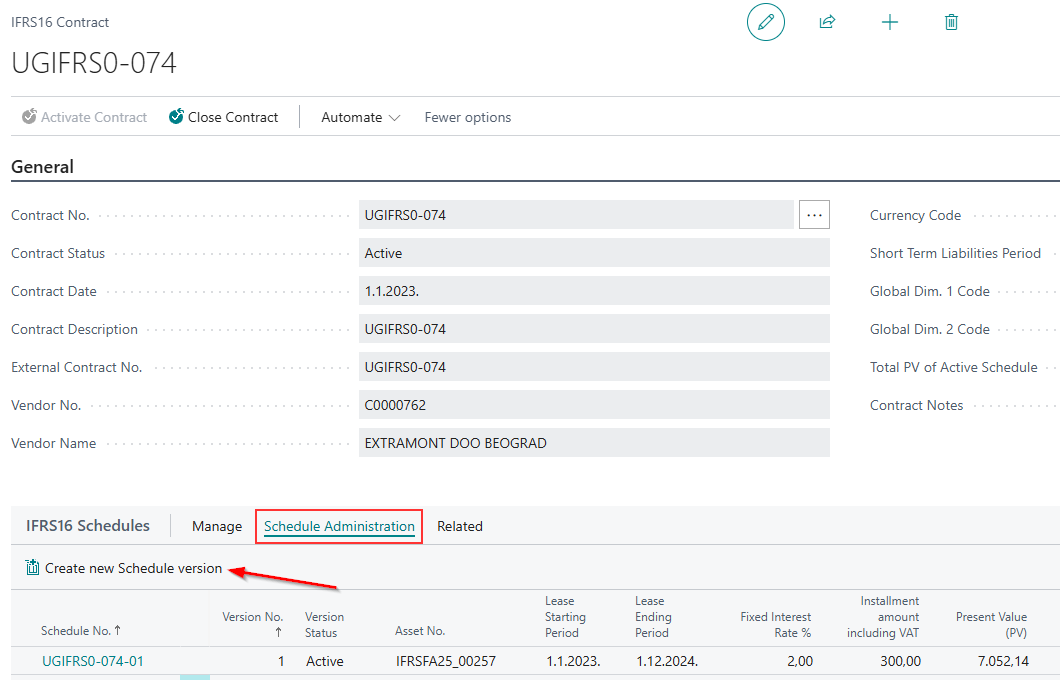
This action enables you to:
- Enter a new amount or interest rate in the new payment schedule version.
- View multiple versions of the payment schedule on the contract lines (versions 1, 2, 3, 4, etc.), depending on how many changes have been made to a particular schedule.
- Track the status of each payment schedule version associated with the contract.
A schedule that was previously in Active status is now in Old status. The Old status indicates that the contract terms have been changed, and no modifications can be made to that schedule. If you attempt to reverse or post any installment from a schedule in Old status, the system displays an error. The payment schedule created under the new terms has the status New.

On a new payment schedule, the fixed asset, number of payments, and the start and end periods are locked and cannot be changed. Only a new price and new interest rate can be entered, as these are editable fields. After entry, the system validates the rows of the schedule.
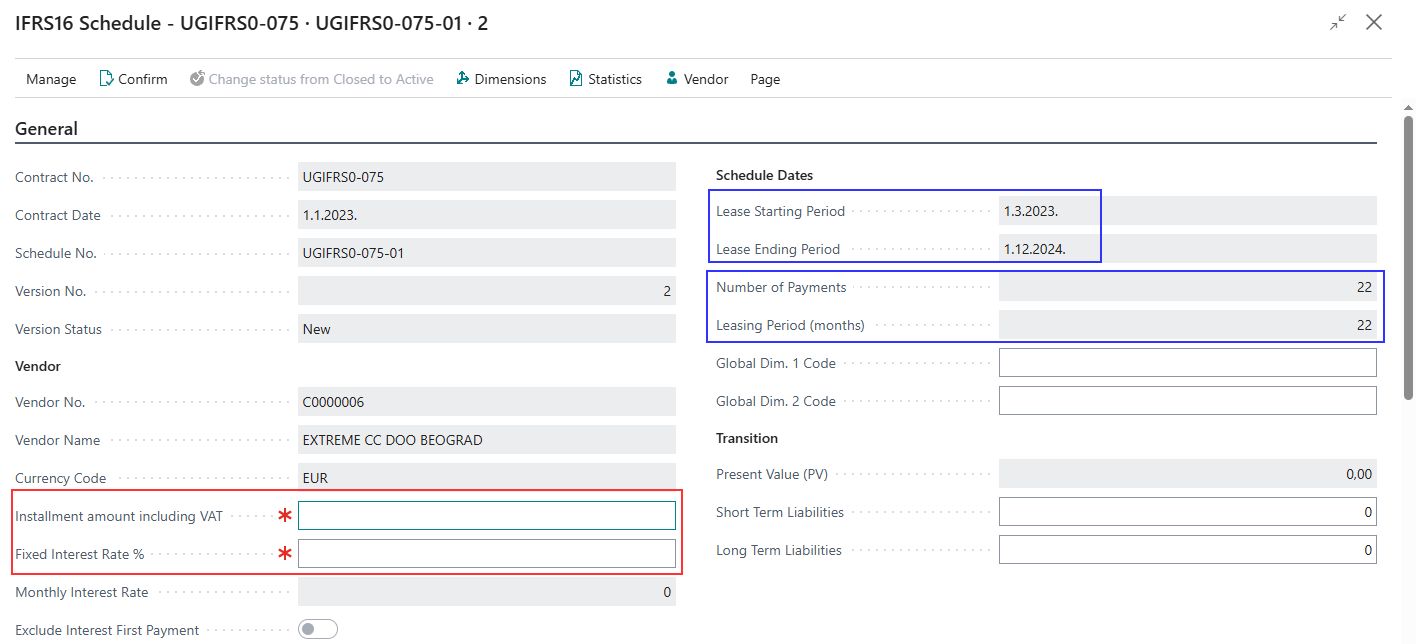
After entering the changes, confirm the payment schedule using the Confirm action. This assigns the liability term type (long-term or short-term) to the schedule lines and posts the change in the amount or interest rate.
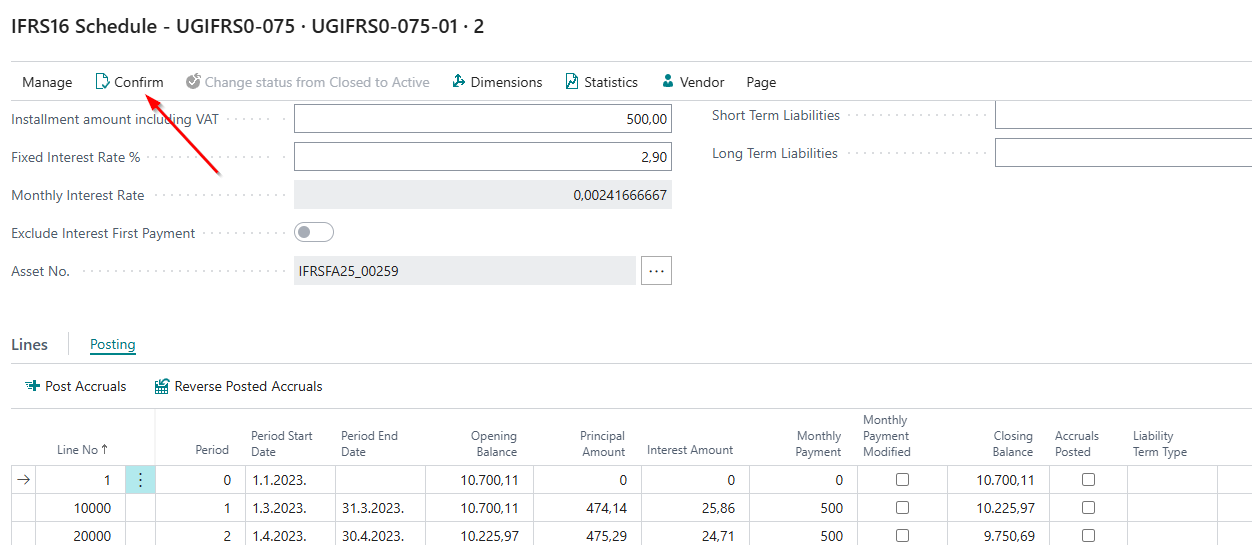
When the Confirm action is used following a change to the contract terms, the system:
- Reverses the open entries from the previous payment schedule.
- Posts new entries under the revised terms of the new payment schedule.
- Posts the difference between the previous and new payment schedules to the existing fixed asset.
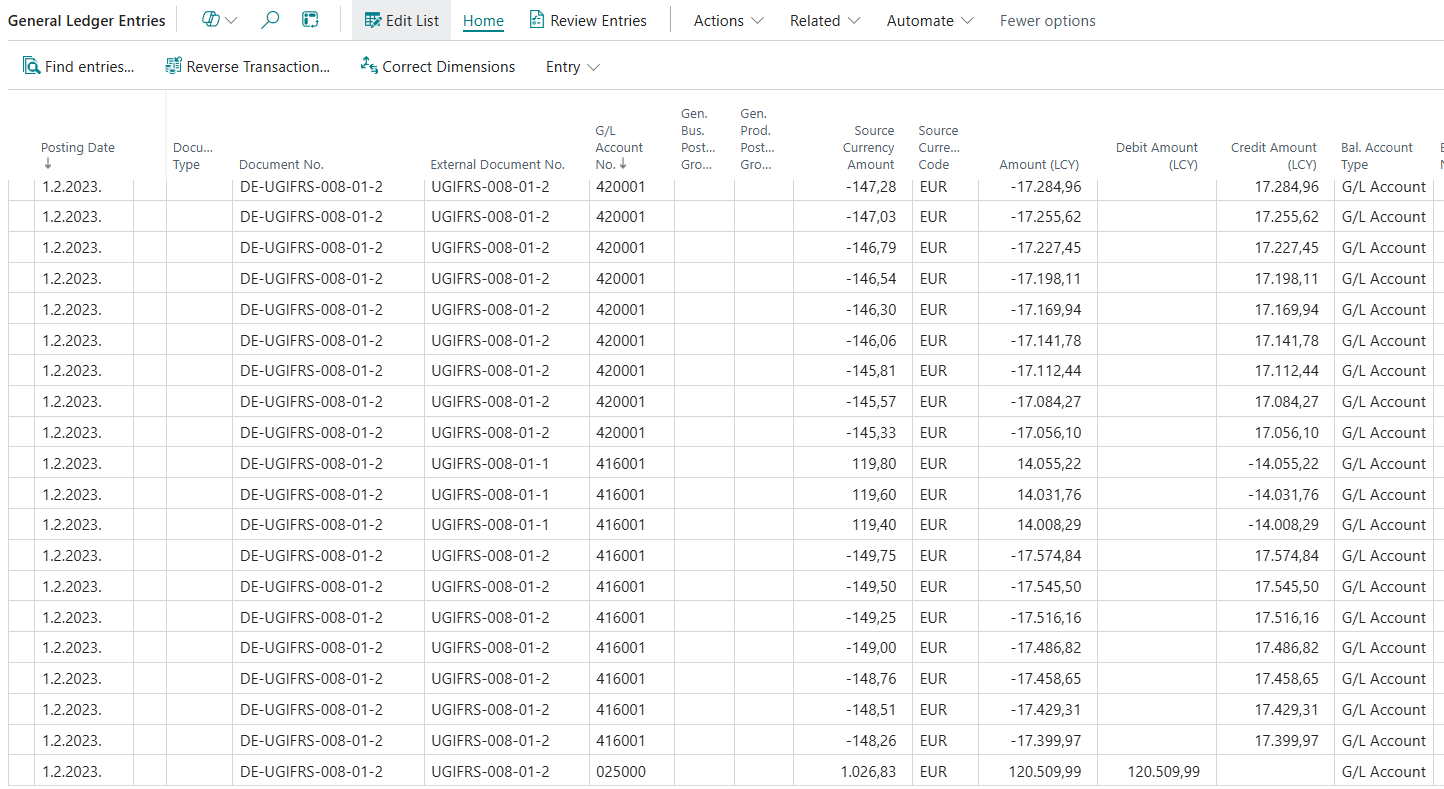
- In the G/L Entries and Vendor Ledger Entries, the Document No. field displays the prefix DE before the contract number (for example,
DE-UGIFRS0-052-01-2). This prefix indicates the posting made to deactivate the previous payment schedule following a change to the contract terms.
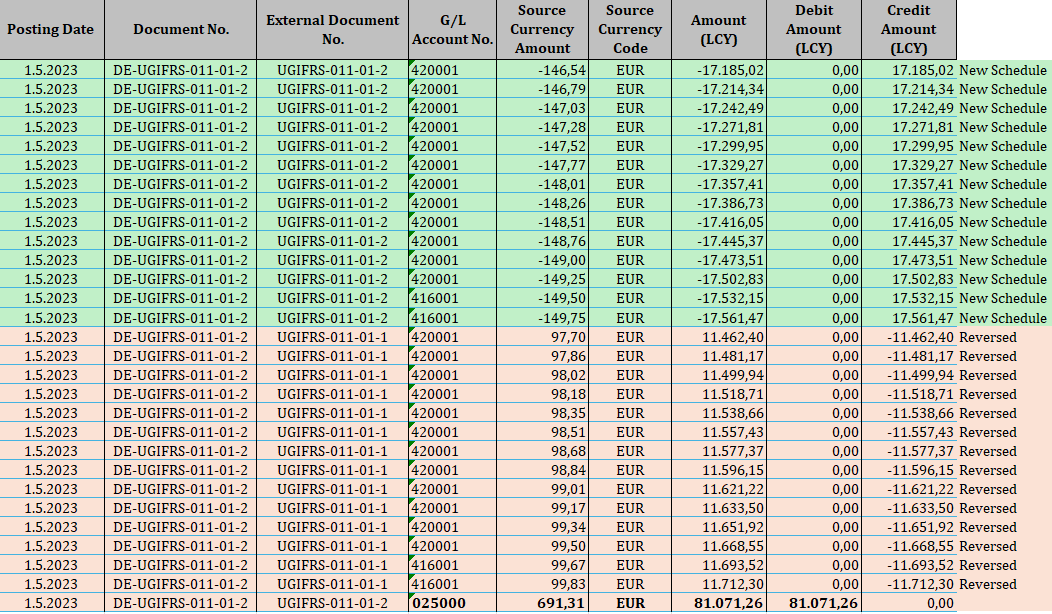
After the payment schedule is confirmed, version 1 has the status Old, while version 2 has the status Active. Individual installments of the Active payment schedule can then be posted. If necessary, further changes can be made by creating another new version.
Create Lease Term Extension
If an annex extending the lease term has been concluded with the lessor, select the Create Lease Term Extension action. This action creates a new version of the payment schedule with an extended lease term, as the total number of payments specified in the contract annex can be entered in the Number of Payments field. In addition to extending the term, this action allows you to change the monthly payment amount and/or interest rate if such changes are made in the annex.
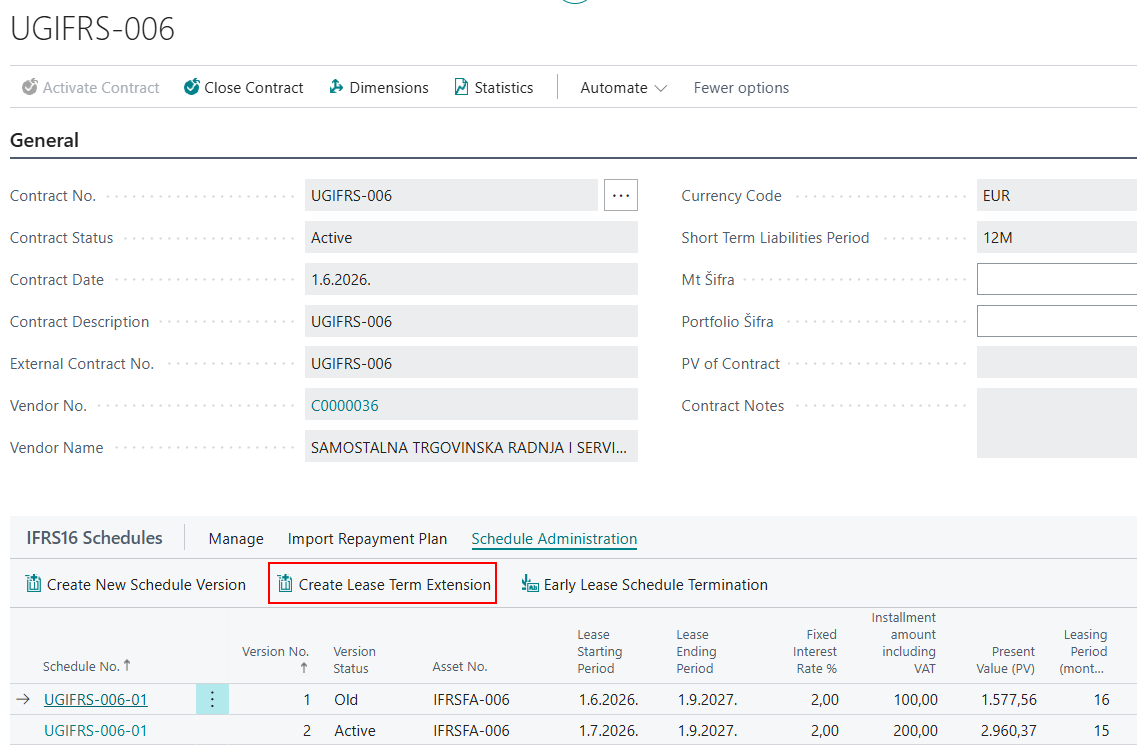
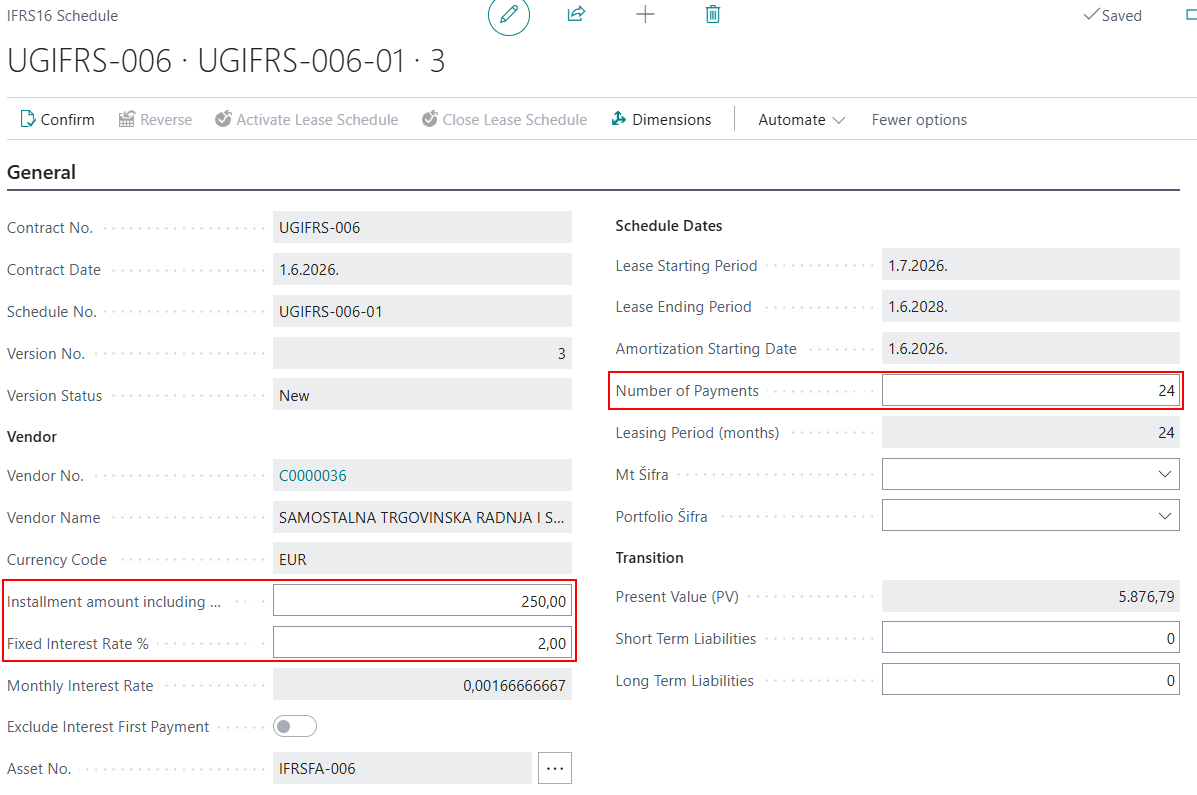
After you select the action, the system creates a new version of the payment schedule and opens it for data entry. Enter the following information:
- Instalment Amount Incl. VAT
- Fixed Interest Rate (%)
- Number of Payments
Based on the entered information, the system generates new payment schedule lines. Both versions appear in the contract lines: the previous version is automatically assigned the status Old, while the newly created version is assigned the status New. The new version remains in New status until it is confirmed using the Confirm action, after which its status changes to Active.
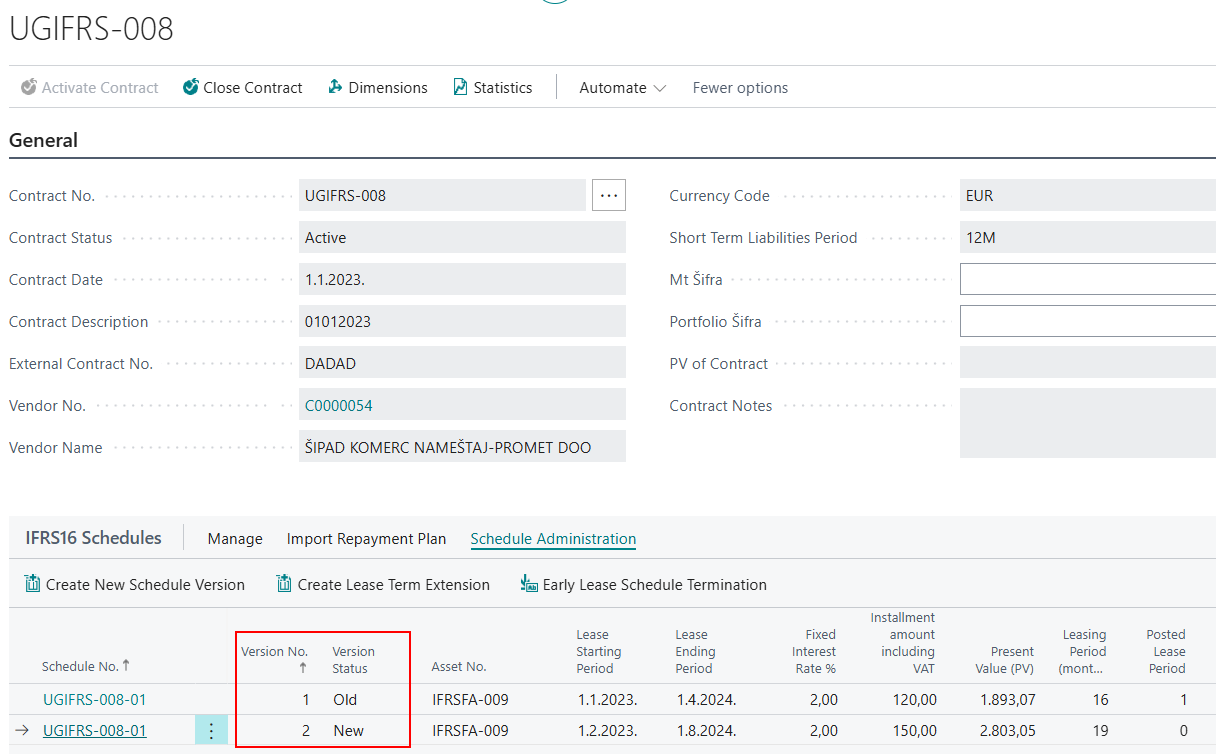
After confirmation, the system posts all required G/L Entries, Vendor Ledger Entries, and Fixed Asset Ledger Entries. All entries relating to unpaid installments from the previous (Old) payment schedule are reversed, and the installments from the new payment schedule are posted in accordance with the amended terms. The difference between the Old and Active payment schedules is posted to the fixed asset, adjusting its book value to reflect the amended terms. After confirmation, the installments from the Active schedule are posted individually as they become due.
Early Lease Schedule Termination
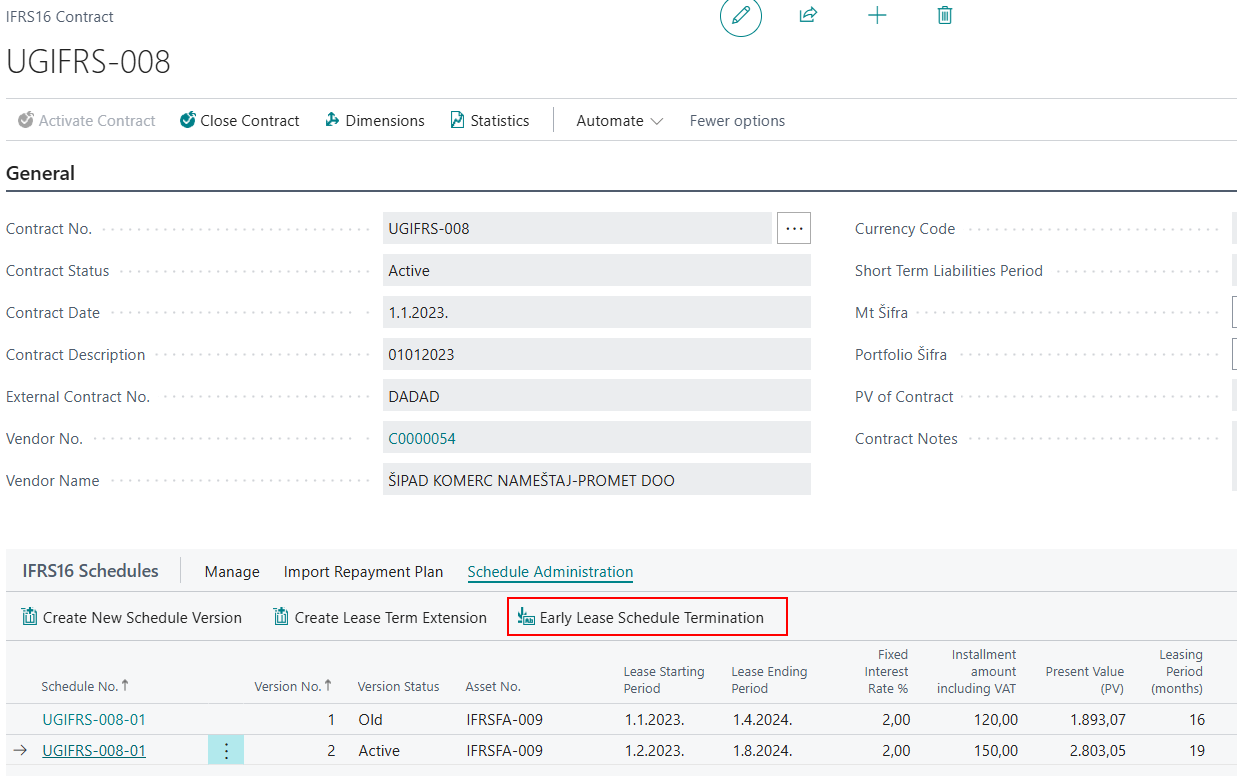
To terminate a contract early, select the Early Lease Schedule Termination action. This action reverses all open payment schedule entries, as well as the remaining value of the fixed asset.
If early termination penalties are stipulated in the contract, they are not posted automatically by this action. Because lessors apply different calculation methods, penalties must be recorded manually through the General Journal, using two lines, based on the specific contract terms and the lessor's policy.
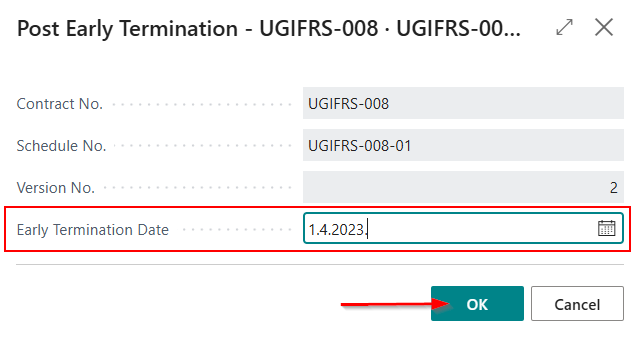
After you select the action, the confirmation message appears: Do you want to post the early termination for schedule? Select Yes to open a new page where you enter the Contract Termination Date, which determines the date on which the early termination is posted.
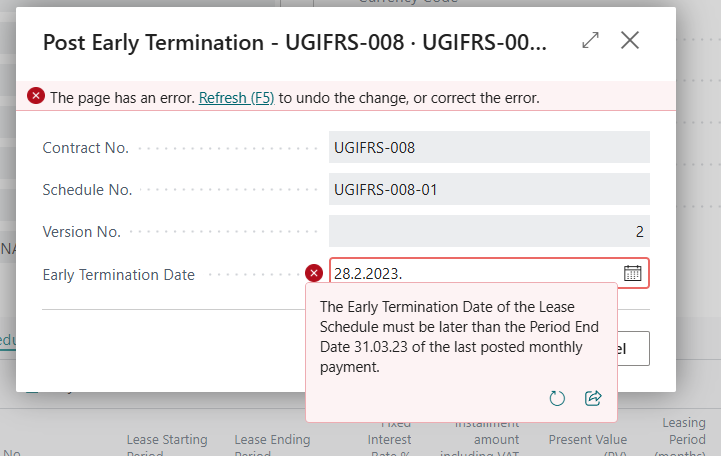
A validation prevents entering an early termination date for a period that has already been posted. For example, if the installment for 31 March 2023 has already been posted and marked as posted in the payment schedule, 31 March 2023 cannot be entered as the termination date. The early termination date must be later than the date of the last posted installment. If an invalid date is entered, the system displays an appropriate error message.
After posting, the payment schedule status changes from Active to Terminated. If there are no other active payment schedules under the contract after the termination, the contract status automatically changes to Closed.

Need more help?