Activate and Close the Contract and Payment Schedule
After the final payment schedule installment is posted, the contract and payment schedule automatically receive the status Closed. If changes to the contract or a new payment schedule are required after closure, the contract can be reactivated using the Activate Contract action available in the contract header.
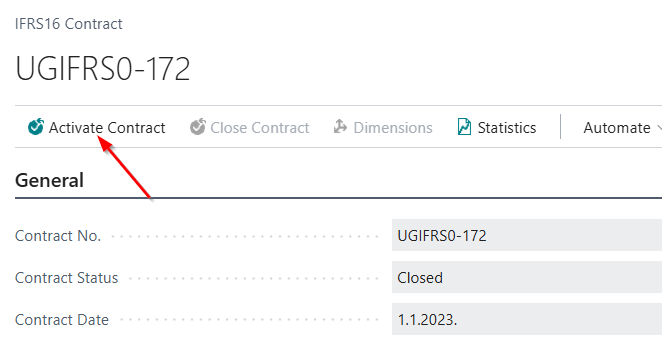
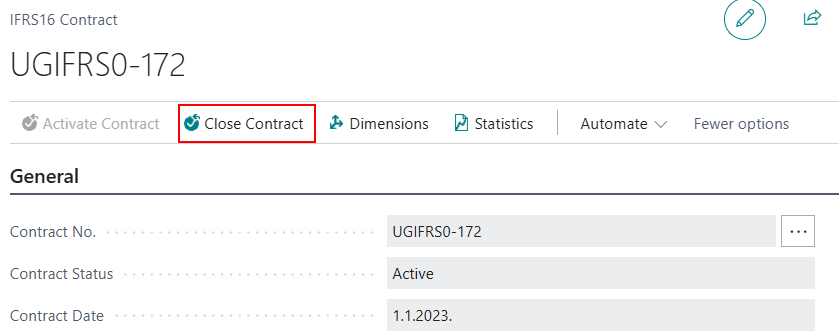
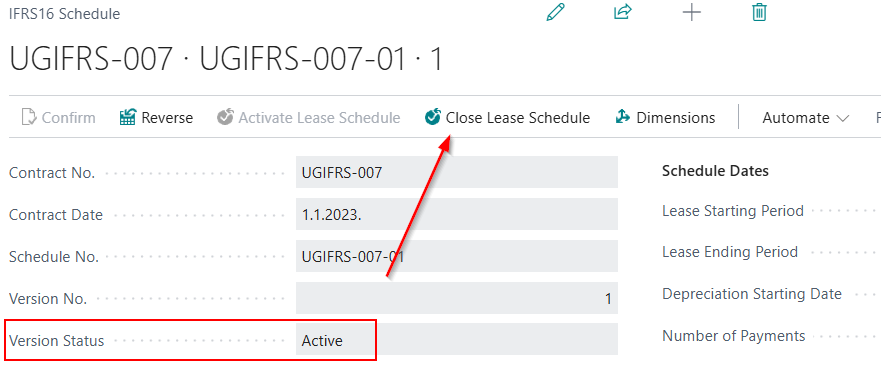
To close the contract, use the Close Contract action.
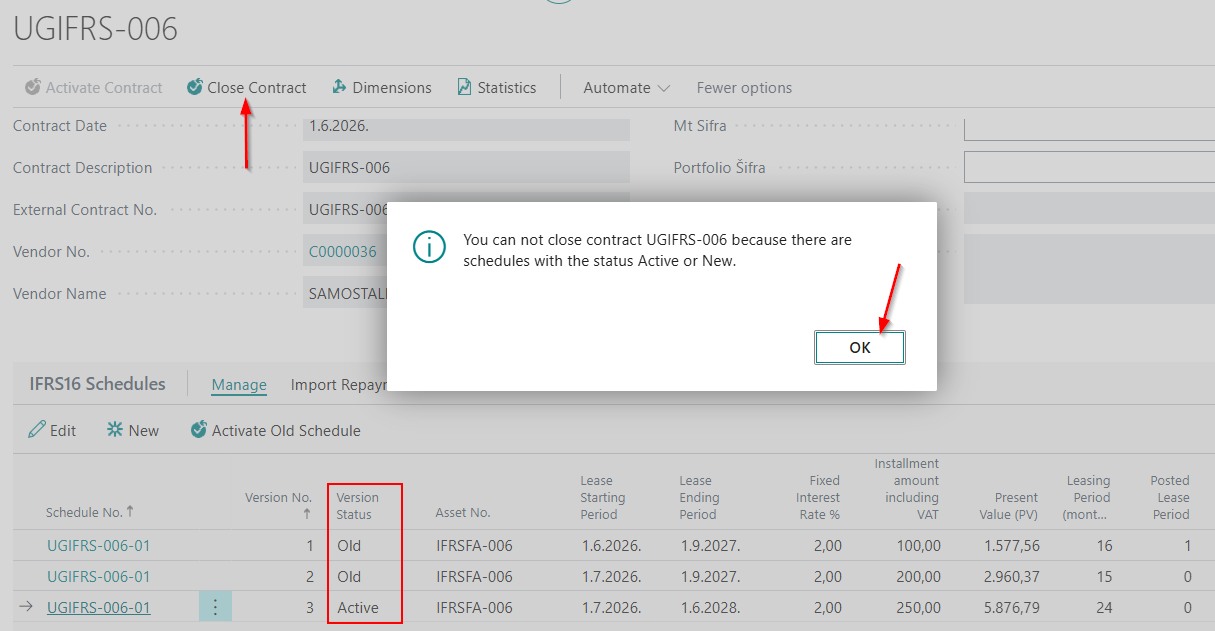
A contract can be closed only if all payment schedules associated with it have the status Closed. If at least one payment schedule still has the status Active or New, Business Central prevents the contract from being closed and displays an error message.
A payment schedule with the status Closed can be reactivated only if the contract has the status Active. Otherwise, the system displays an error message and prevents the payment schedule from being activated.
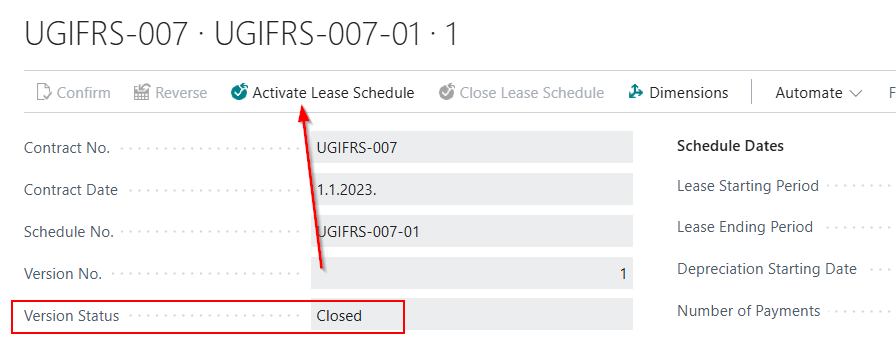
To activate a payment schedule, select the Activate Lease Schedule action. To close it, select the Close Lease Schedule action. Both actions are available in the payment schedule header.
Activate a Schedule with the Status Old
Each change to the contract terms creates a new version of the payment schedule, while the previous version is assigned the status Old. When you select the Create New Schedule Version or Create Lease Term Extension action, the system automatically changes the current payment schedule version status to Old and creates a new version with the status New.
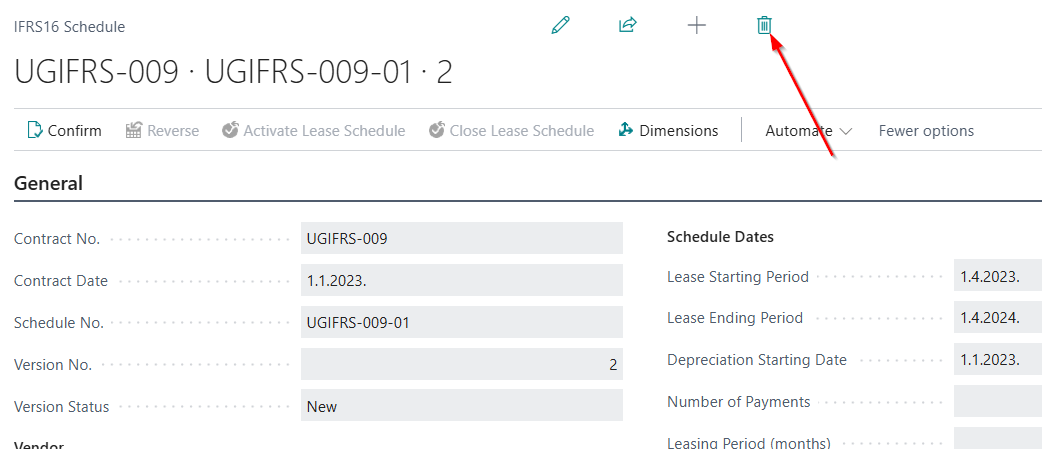
Since a user may accidentally select the wrong action — for example, Create Lease Term Extension instead of Create New Schedule Version, or vice versa — a payment schedule with the status New can be deleted. This allows you to remove the incorrectly created version and select the appropriate action.

To delete a payment schedule with the status New, click the Delete icon above the payment schedule header. After you confirm, the payment schedule is permanently deleted and no longer appears in the contract lines.
A payment schedule with the status Active that has posted entries cannot be deleted; it must be reversed.
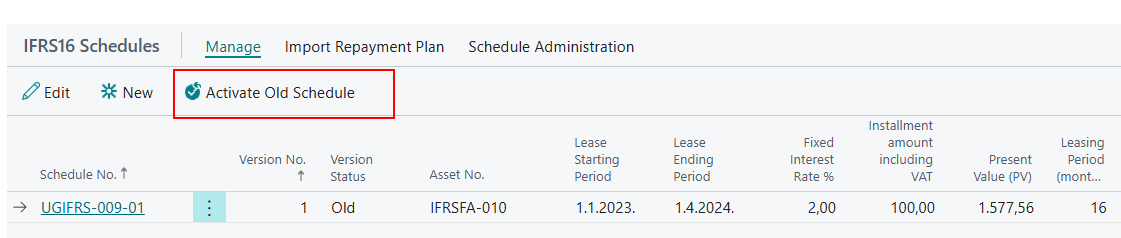
If the contract lines now contain two payment schedules with the status Old, activate the latest one by selecting the Activate Old Schedule action before using Create New Schedule Version or Create Lease Term Extension again. After activation, the payment schedule status changes back to Active, and you can then select either action, depending on the required change.
Need more help?